
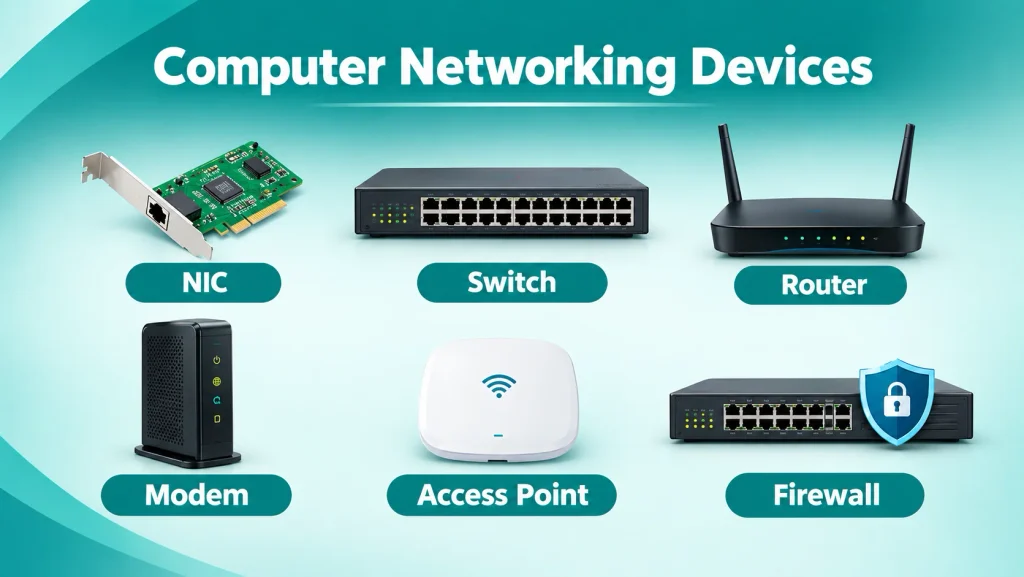
A computer network needs hardware to work. Without hardware, no data can move from one device to another. Think of it like a road system. Cables and wireless signals are the roads. Networking devices are the traffic signals, junctions, and toll gates that control how data moves.
Every network, big or small, uses the same basic building blocks. A home Wi-Fi setup and a large office network both use NICs, switches, routers, modems, and access points. The scale is different, but the work of each device stays the same.
In this guide, we explain the most important networking hardware devices. I have set up small office networks and home labs myself. I will share real examples from that experience.
Computer Networking Devices and Their Functions
This table sums up each networking device, its main work, and the OSI layer it works at. It helps to see them side by side.
| Device | Main Work | OSI Layer |
|---|---|---|
| NIC | Connects one device to the network | Layer 2 (Data Link) |
| Switch | Connects devices inside one LAN | Layer 2 (Data Link) |
| Router | Connects different networks, routes data by IP | Layer 3 (Network) |
| Modem | Converts signals between your network and the ISP line | Layer 1 (Physical) |
| Access Point | Connects wireless devices to a wired network | Layer 2 (Data Link) |
| Firewall | Filters traffic for security | Layer 3/4 (Network/Transport) |
1. Network Interface Card (NIC)
A Network Interface Card (NIC) is the device that lets a computer join a network. Without a NIC, a computer cannot send or receive data on a network. Every laptop, desktop, and server has at least one NIC.
A NIC sits between the computer and the network cable or wireless signal. It takes data from the computer and turns it into a form the network can carry. It also takes data from the network and turns it into a form the computer can use.
Modern computers come with a NIC built into the motherboard. You do not need to buy a separate card for basic use. But servers and gaming PCs often add a second NIC for better speed.
Wired vs Wireless NICs
There are two main types of NICs. Each type suits a different use case.
- Wired NIC (Ethernet card): This NIC connects to the network using an Ethernet cable. It plugs into an RJ45 port. Wired NICs give a stable and fast connection. Offices and gaming setups often use wired NICs because they do not drop signal as Wi-Fi can.
- Wireless NIC (Wi-Fi card): This NIC connects to the network using radio waves. It does not need a cable. Laptops and phones use wireless NICs. In 2026, most new wireless NICs support Wi-Fi 6E or Wi-Fi 7, which gives faster speeds and less lag than older Wi-Fi versions.
From my own experience, a wired NIC always gives better speed for video calls and large file transfers. If your Wi-Fi keeps disconnecting during an online class, try a wired connection first. It solves the problem most of the time.
What is a MAC Address?
Every NIC has a unique number burned into it. This number is called a MAC address (Media Access Control address). No two NICs in the world share the same MAC address.
A MAC address looks like this: 00:1A:2B:3C:4D:5E. It has six pairs of numbers and letters. The first three pairs show the company that made the NIC. The last three pairs are unique to that specific card.
A MAC address works at Layer 2 of the OSI model, called the Data Link layer. Switches use MAC addresses to send data to the correct device inside a local network. This is different from an IP address, which works at a higher layer and helps route data across different networks.
2. Network Switch
A network switch connects multiple devices inside one local network (LAN). It lets computers, printers, and servers talk to each other. A switch is the device you see in most offices with many cables plugged into it.
A switch reads the MAC address of each device connected to it. It builds a table of these addresses. When data arrives, the switch checks the table and sends the data only to the correct device. This is smarter than older hubs, which sent data to every device on the network.
How Switches Improve Network Efficiency
Switches make a network faster and safer in a few clear ways:
- Reduce network traffic: A switch sends data only to the target device, not to all devices. This cuts down unwanted traffic on the network.
- Prevent data collisions: Each port on a switch gets its own dedicated bandwidth. This means two devices do not fight over the same data path.
- Support full-duplex communication: A switch lets devices send and receive data at the same time. This doubles the effective speed compared to older half-duplex systems.
- Enable VLANs: Modern managed switches can split one physical network into several virtual networks (VLANs). This helps separate traffic, for example, keeping guest Wi-Fi away from company data.
I once fixed a slow office network just by replacing an old hub with a basic switch. The difference was instant. File transfers that took minutes dropped to a few seconds. This shows how much a switch improves a local network.
Switch vs Hub – Why Switches Replaced Hubs
A hub is an older device. It sends every data packet to every connected device, whether that device needs it or not. This wastes bandwidth and causes collisions. A switch, on the other hand, sends data only where it needs to go. Because of this, hubs are almost gone from modern networks. Today, switches handle this work in homes, schools, and offices.
3. Network Router
A router connects different networks together. The most common example is your home router, which connects your home network to the internet (a much larger network run by your ISP).
A router works at Layer 3 of the OSI model, called the Network layer. This layer deals with IP addresses, not just MAC addresses. Because of this, a router can make smart decisions about where to send data, even across long distances.
Traffic Routing & Connecting Different Networks
A router’s main work is to find the best path for data to travel. It does this using a routing table, which lists known networks and the best path to reach them.
Routers connect different types of networks, such as:
- A home LAN to the internet (WAN)
- Two office branches over a private line
- A wired network to a wireless network
- Networks using different protocols
A router also runs Network Address Translation (NAT). NAT lets many devices in your home share one public IP address from your ISP. This is why your phone, laptop, and smart TV can all use the internet at the same time, even though your ISP gave you only one IP address.
Use of IP Addresses in Routers
Every device on a network needs an IP address to communicate beyond its local network. A router reads the destination IP address on each data packet and decides where to send it next.
There are two main types of IP addresses:
- Private IP address: Used inside your home or office network. Example: 192.168.1.5. This address is not visible on the public internet.
- Public IP address: Given by your ISP to your router. This address is visible on the internet and lets your network communicate with the outside world.
Most routers today also support IPv6, which offers many more addresses than the older IPv4 system. As more devices connect to the internet, IPv6 is becoming more common in home and business routers in 2026.
4. Modem (Modulator-Demodulator)
A modem connects your home network to your internet service provider (ISP). The word “modem” comes from two actions: modulate and demodulate.
A modem changes digital signals from your computer into a form that can travel over your ISP’s line, and it changes the signal back when data arrives. Without a modem, your home network cannot reach the internet at all.
Many people confuse a modem with a router. They are not the same. A modem brings the internet connection into your home. A router then shares that connection with all your devices. Many ISPs now give you a combo device called a gateway, which packs both jobs into one box.
Digital to Analog Signal Conversion Explained
Your computer works with digital signals, which are just 1s and 0s. But older phone and cable lines were built to carry analog signals, which are continuous waves.
A modem solves this mismatch:
- Modulation: The modem turns your computer’s digital data into an analog signal that can travel over a phone or cable line.
- Demodulation: The modem takes an incoming analog signal from the ISP and turns it back into digital data your computer understands.
Fiber connections work a bit differently. They use light signals, not analog electrical signals. So a fiber modem (called an ONT, or Optical Network Terminal) converts light signals into digital data instead. The core idea is the same: convert the signal so your devices can use it.
DSL, Cable, and Fiber Connections
Modems connect to different types of internet lines. Each type has its own strengths in 2026:
- DSL modem: Uses regular phone lines. It is slower than cable or fiber, and speed drops as you live farther from the phone exchange. It is common in areas without cable or fiber.
- Cable modem: Uses the same coaxial cable that carries cable TV. Most cable modems today use the DOCSIS 3.1 standard, which supports gigabit-level speeds. The newer DOCSIS 4.0 standard is now live in select markets in the US, and it pushes speeds up to 10 Gbps downstream and 6 Gbps upstream. DOCSIS 4.0 is mostly available through ISP-issued gateways in select cities, not yet as a modem you can freely buy.
- Fiber modem (ONT): Uses light through glass fiber cables. Fiber gives the fastest and most stable speeds available today, often matching or beating DOCSIS 4.0, with lower latency. Fiber is spreading fast in cities but still has limited reach in rural areas.
If you are choosing new internet hardware, match your modem to your ISP’s approved device list. Using the wrong modem, or one not certified for your speed plan, can limit your internet speed even if you pay for a faster plan.
5. Wireless Access Point (WAP)
A Wireless Access Point (WAP) lets wireless devices connect to a wired network. It works like a bridge between the wired and wireless world.
A basic home router already has a small built-in access point. But in larger spaces, one access point is not enough. The signal gets weak as you move farther from the router. This is where a separate WAP becomes useful.
A WAP connects to a switch or router using an Ethernet cable. It then broadcasts a Wi-Fi signal so wireless devices, like phones and laptops, can join the network without wires.
Extending Wi-Fi Coverage in Large Buildings
In schools, offices, and large homes, one router cannot cover every corner. Walls, floors, and distance all weaken the wireless signal. Multiple access points solve this problem.
- Multiple access points: Placed across a building, each covering its own zone. Devices move between them without losing connection, a process called roaming.
- Mesh Wi-Fi systems: A modern version of multiple access points. Mesh nodes talk to each other and act like one large network, so you get full coverage without switching networks manually.
- Wi-Fi 7 access points: In 2026, Wi-Fi 7 (also called 802.11be) is now common in new access points. It supports wider channels and lower latency than older standards, which helps in crowded areas with many connected devices, such as classrooms and lecture halls.
- PoE (Power over Ethernet): Many access points get both data and power through a single Ethernet cable. This removes the need for a separate power outlet near each access point, which makes installation easier in large buildings.
I helped set up access points in a two-floor office once. One router alone left the far corner of the second floor almost unusable. Adding two access points fixed the dead zones completely. This is a common real-world fix, not just a theory from a textbook.
Other Important Networking Devices
The five devices above are the core of most networks. But a full network setup often includes a few more devices. These often show up in exams and real IT jobs too.
- Firewall: A firewall checks incoming and outgoing traffic and blocks anything unsafe. Many modern routers include a basic firewall built in, but businesses often use a separate, stronger firewall device.
- Bridge: A bridge connects two network segments and makes them act like one network. It works at the same layer as a switch but usually connects only two segments, not many devices.
- Gateway: A gateway connects two networks that use different protocols or data formats. For example, it can let a private company network talk to a completely different system outside.
- Repeater: A repeater takes a weak signal and boosts it, so it can travel farther without losing quality. It is useful in long cable runs or large open spaces.
How Do These Networking Hardware Devices Work Together?
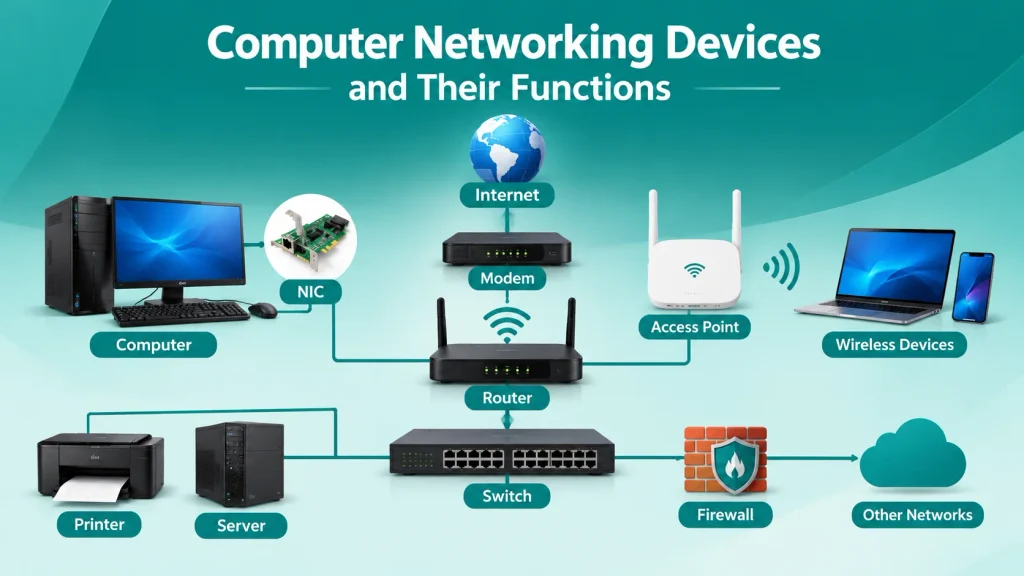
These devices rarely work alone. In a typical home setup, the flow looks like this:
- The modem brings the internet signal in from your ISP.
- The router connects to the modem and manages traffic between your home network and the internet.
- A switch, often built into the router, connects wired devices like desktops and smart TVs.
- A wireless access point, often also built into the router, lets phones and laptops join without cables.
- Each device’s NIC lets it send and receive data through this whole chain.
In offices, these devices are usually separate boxes, not combined into one unit. This gives better performance and makes it easier to fix one part without affecting the whole network. From setting up small networks myself, I have found that separate devices are easier to troubleshoot. If a combo router-modem box fails, you lose internet and Wi-Fi at the same time. Separate devices let you isolate the problem faster.
Frequently Asked Questions
What is the main difference between a router and a switch?
A switch connects devices inside one local network. A router connects different networks together and directs traffic between them using IP addresses.
Do I need a separate access point if I already have Wi-Fi from my router?
Not always. A single router is enough for small homes. But in large homes, offices, or multi-floor buildings, a separate access point or mesh system can fix weak-signal areas.
Can a modem work without a router?
Yes, but only one device can connect directly to it at a time, and that device will get the public IP address straight from the ISP. Most homes use a router with the modem to share the connection with many devices.