
A cell in Excel is the smallest unit of a worksheet, formed where a row meets a column. It stores data such as numbers, text, dates, or formulas.
I remember teaching this concept to my Class 9 students for the first time. Most students could open Excel, but they did not know the proper name for the box they were typing in. Once they understood the term “cell,” the rest of Excel became easier to learn. This article explains what a cell is, how it works, and how students and beginners can use it correctly in 2026.
What is a Cell in Excel? (Core Definition)
A cell is the intersection of a row and a column in an Excel worksheet. Every worksheet contains many rows and columns. The point where a row meets a column forms a small box. This box is the cell.
A cell stores data. This data can be a number, a word, a date, or a formula. Without cells, a spreadsheet program cannot function. Cells form the foundation of every Excel worksheet, table, and chart.
Understanding Rows, Columns, and Cell Addresses
Rows and columns organize the Excel grid. Students must understand both terms before learning about cell addresses.
What is Row?
A row runs horizontally across the worksheet. Excel labels rows using numbers. Row numbers appear on the left side of the screen. They start from 1 and continue downward.
What is Column?
A column runs vertically down the worksheet. Excel labels columns using letters. Column letters appear at the top of the screen. They start from A and continue as B, C, D, and so on.
What is Cell Address?
A cell address identifies the exact location of a cell. It combines the column letter and the row number. For example, cell B5 means column B and row 5.
A few extra facts help students understand the scale of a worksheet:
- A modern Excel worksheet contains 1,048,576 rows.
- A modern Excel worksheet contains 16,384 columns.
- Column letters continue past Z using two letters, such as AA, AB, and AC.
- The last column in Excel is XFD.
These numbers show why Excel can manage very large datasets. Students rarely use all these rows and columns, but the structure supports complex data work in fields like accounting, data analysis, and research.
What is Active Cell in Excel?
The active cell is the cell currently selected on the worksheet. It shows a dark border around it.
The Name Box sits on the top-left side of the Excel window, just above the column headers. It displays the address of the active cell. This small box is very useful for navigation.
In my own teaching practice, I use one simple trick with students. Instead of scrolling through hundreds of rows to find a cell, I type the exact cell address into the Name Box and press Enter. Excel jumps directly to that cell. This method saves time during practical exams and large assignments.
Types of Data a Cell Can Hold
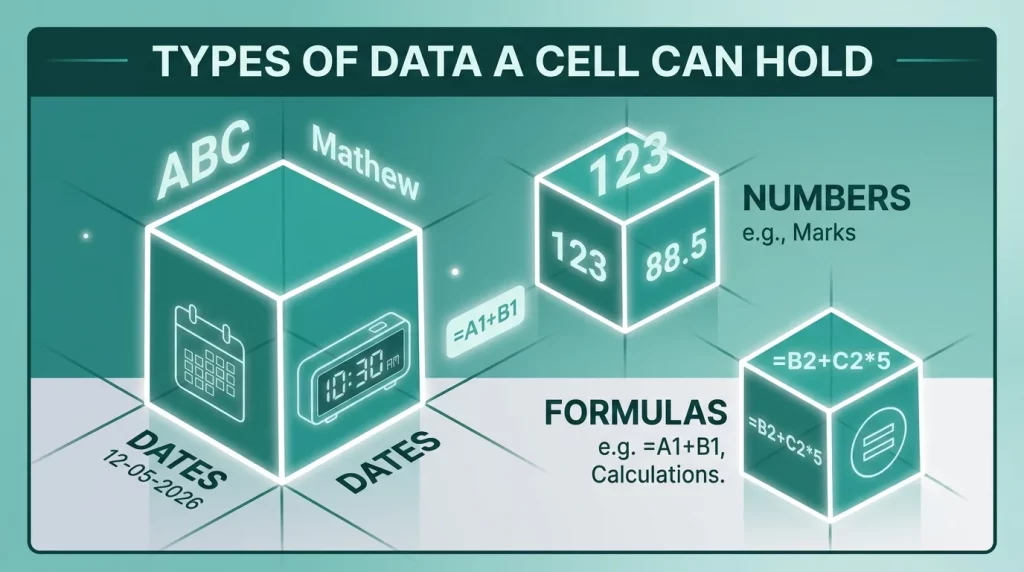
A cell does not store only one kind of data. Excel allows several data types inside a single cell. Understanding these types helps students choose the correct format for their work.
A cell can hold the following types of data:
- Text: Names, labels, or any written word, such as “Mathematics” or “Student Name.”
- Numbers: Whole numbers or decimals, such as 95 or 88.5.
- Dates and times: Calendar dates or clock times, such as 12-05-2026 or 10:30 AM.
- Formulas: Calculations that start with an equal sign, such as =A2+B2.
- Logical values: TRUE or FALSE results, often used in conditional checks.
A simple example makes this clear. In a student gradebook, column A may hold student names (text), column B may hold marks (numbers), and column C may hold a formula that calculates the percentage. This mix of data types is what makes Excel useful for school projects, budgets, and reports.
How Do You Select a Cell or a Range of Cells in Excel?
A single click selects one cell. Click-and-drag selects a range of connected cells.
Selection methods:
- Single cell: Click once.
- Range of cells: Click first cell, drag to last cell (example: A1:A10).
- Shift + Click: Selects everything between two cells.
- Ctrl + Click: Selects multiple non-connected cells.
- Click row number: Selects the entire row.
- Click column letter: Selects the entire column.
What is the Difference Between a Cell, Range, Worksheet, and Workbook?
A cell is one box. A range is a group of cells. A worksheet is a full grid. A workbook is the entire file.
| Term | Meaning |
|---|---|
| Cell | One box at a row-column intersection |
| Range | A group of connected cells (A1:A10) |
| Worksheet | One full grid, also called a sheet |
| Workbook | An Excel file containing multiple worksheets |
What is the Difference Between Relative, Absolute, and Mixed Cell References?
A relative reference changes when copied. An absolute reference stays fixed. A mixed reference locks only the row or only the column.
| Reference Type | Symbol | Behavior When Copied |
|---|---|---|
| Relative | A1 | Changes automatically |
| Absolute | $A$1 | Stays fixed |
| Mixed | $A1 or A$1 | Locks only column or only row |
FAQs
What is the shortcut to select a cell?
Arrow keys move the active cell selection in any direction. The Name Box allows direct selection by typing the cell address.
How many cells are there in Excel?
A single worksheet contains 1,048,576 rows and 16,384 columns. This creates billions of individual cells on a single worksheet.
What is the difference between a cell and a cell reference?
A cell is the actual box on the worksheet. A cell reference is the address used to point to that cell, such as B5.