
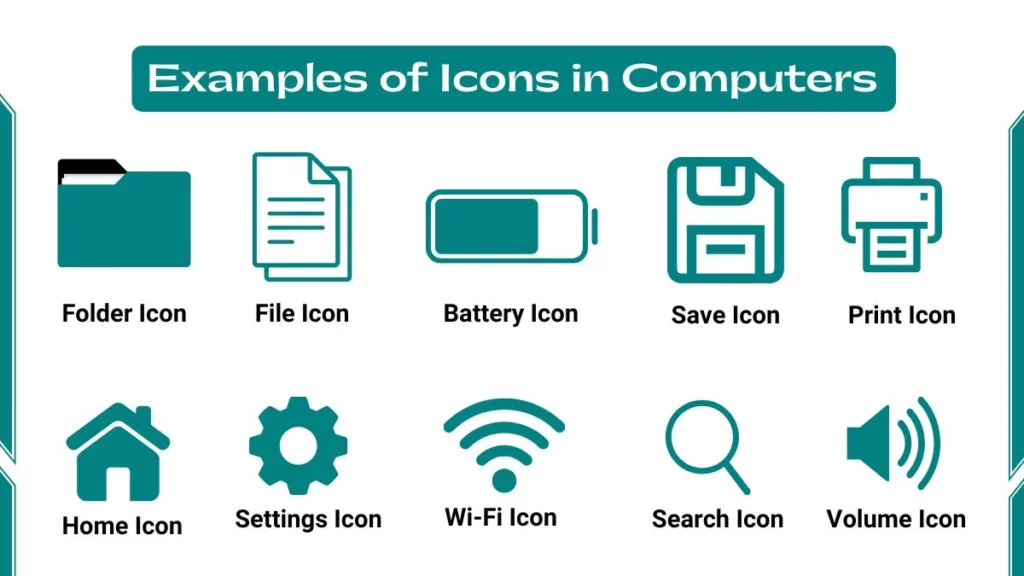
Examples of icons in computers include Folder Icon, Wi-Fi Icon, Settings Icon, Print Icon, Save Icon, Microsoft Word Icon, Battery Icon, Volume Icon and many more which we look at below.
Computer Icons are small images or symbols on your computer screen. Each icon represents a file, folder, application, or system tool. When you click an icon, your computer opens or runs what that icon represents.
In my years of teaching computer science, I ask students one simple question on the first day: “What is the first thing you see when you turn on a computer?” Almost every student says the same thing: “icons”. They are the entry point to everything your computer does.
Examples of Icons in Computers
The following is a list of computer icons and their functions:
1. Recycle Bin Icon
The Recycle Bin icon looks like a trash can. It is one of the most recognized desktop icons on Windows computers.
Function: The Recycle Bin temporarily stores deleted files. When you delete a file, Windows moves it to the Recycle Bin instead of permanently removing it. Files in the Recycle Bin still use storage space on your hard drive. Always check before emptying it to avoid losing important files permanently.
How to use it:
- To restore a deleted file: open the Recycle Bin, right-click the file, and select Restore
- To permanently delete all files: right-click the Recycle Bin and select Empty Recycle Bin
- The icon changes appearance, it shows papers inside when it contains files, and it appears empty when it has been cleared
2. Folder Icon
The folder icon is usually yellow or orange. It is one of the most common icons you see in File Explorer on Windows and Finder on macOS.
Function: Folders organize files into groups. Think of them like physical folders in a filing cabinet. Each folder can hold documents, images, videos, or even other folders (called subfolders).
How to use it:
- Move files into a folder: drag and drop them
- Create a new folder: right-click on the desktop or inside File Explorer → select New → Folder
- Rename a folder: right-click the folder → select Rename
3. My Computer/This PC Icon
This PC icon looks like a computer monitor or desktop computer. On older Windows versions, it was called “My Computer”. On Windows 10 and Windows 11, it is called “This PC”.
Function: This PC icon gives you access to all drives and storage devices connected to your computer, including the C: drive (main hard disk), USB drives, external hard drives, and optical drives.
How to use it:
- Access connected devices like USB flash drives or memory cards
- Double-click to open File Explorer
- Use it to check available storage space on your drives
4. Google Chrome Icon
The Google Chrome icon is a circle divided into red, yellow, and green sections, with a blue circle in the center.
Function: Chrome Icon opens the Google Chrome web browser. Chrome is used to browse the internet, access websites, watch videos, and use web applications.
Key features accessible from the Chrome icon:
- Bookmark your favorite websites using the star icon in the address bar
- Open multiple websites in separate tabs
- Use the Omnibox (address bar) to search Google directly
- Access Chrome extensions for added functionality
5. PDF Icon
The PDF icon represents files saved in Portable Document Format (PDF). The PDF icon usually looks like a white paper with a red Adobe logo. PDFs are popular because they keep the same layout on all devices.
For example, if you create a PDF on a Windows computer, it will look the same on a Mac or smartphone. Adobe Acrobat is a common program to open PDFs, but free tools like Google Chrome can also view them.
6. Microsoft Word Icon
This blue “W” icon opens Microsoft Word, a program for writing documents like essays, letters, or projects. When you start typing, use the Save button (floppy disk icon) to save your work. You can change fonts, add images, or check spelling using the toolbar. Find this icon on the desktop or in the Start Menu.
7. Save Icon
The Save icon looks like a floppy disk, an old storage device. Clicking this icon saves your work in a file. For example, if you are writing an essay in Microsoft Word, click the Save icon to save your progress.
Always save your work frequently to avoid losing it if the computer crashes. You can also use the keyboard shortcut Ctrl + S to save quickly. The Save icon is usually in the top-left corner of software like Word or Paint.
8. Print Icon
The Print icon looks like a printer. Clicking this icon allows you to print a document. Before printing, check the preview to make sure everything looks correct. This helps save paper and ink. Ensure your printer is connected and has enough ink before printing. The Print icon is found inside programs like Word or PDF readers.
9. Settings Icon
The Settings icon looks like a gear. It opens your computer’s control panel, where you can customize settings. For example, you can change the desktop background, adjust screen brightness, or set up Wi-Fi. To open Settings, click the Start Menu and select Settings.
You can also find the Settings icon in the taskbar. This is where you go to update your computer or troubleshoot problems.
10. Wi-Fi Icon
The Wi-Fi icon looks like curved bars. It shows your wireless internet connection strength. Full bars mean a strong signal, while fewer bars mean a weak connection. Click the icon to connect to a Wi-Fi network or troubleshoot connection issues. If the icon has a red X, your Wi-Fi is turned off. You can find the Wi-Fi icon in the bottom-right corner of the taskbar.
11. Battery Icon
The Battery icon shows your laptop’s battery percentage. A full battery means you can work without charging. If the battery is low, the icon turns red, and you should plug in your charger. Hover over the icon to see how much time is left before the battery dies. You can find the Battery icon in the taskbar’s bottom-right corner.
12. Volume Icon
The Volume icon looks like a speaker. It controls the sound on your computer. Click the icon to mute or adjust the volume. Right-click it to open Sound Settings, where you can configure speakers or microphones. You can also use keyboard shortcuts like F11 or F12 to adjust the volume quickly. The Volume icon is in the taskbar’s bottom-right corner.
13. Home Icon
The Home icon looks like a small house or a simple building outline.
Function: The home icon takes you to the starting point or main screen of an application or website. For example, in a web browser, clicking the Home icon opens your homepage (like Google). You can set your homepage in the browser’s settings. The Home icon is found inside apps or browsers.
Where you see this icon:
- Web browsers (takes you to your set homepage)
- File Explorer in Windows 11
- Mobile apps (returns you to the main screen)
- Smart home dashboards (control home devices)
14. Search Icon
The Search icon looks like a magnifying glass a circle with a short handle.
Function: Search Icon opens a search bar where you can type to find files, applications, settings, or information. For example, if you forget where you saved a file, type its name in the search bar to locate it quickly. You can use the Search icon in File Explorer or the taskbar. This saves time compared to browsing folders manually.
How to use it on Windows:
- Click the magnifying glass icon on the taskbar to open Windows Search
- Type a file name to locate it without browsing folders manually
- Search for applications to open them quickly
- Use it to search the web directly from the taskbar
15. Calendar Icon
The Calendar icon looks like a small wall calendar showing a grid of squares representing days.
Function: It opens calendar applications where you can view dates, schedule events, and set reminders.
Common calendar applications:
- Microsoft Outlook Calendar (used in workplaces and schools)
- Google Calendar (accessible from any browser or app)
- Apple Calendar (on macOS and iOS)
How students use it: Add assignment due dates, exam schedules, and project deadlines. You can sync calendar apps with your smartphone to receive reminders anywhere.
16. Bluetooth Icon
The Bluetooth icon is a stylized “B” shape made of angular lines. It resembles the runic initials of a Viking king, Harald Bluetooth, who inspired the technology’s name.
Function: Bluetooth controls your computer’s Bluetooth radio, which lets you connect wireless devices without cables.
Devices you can connect via Bluetooth:
- Wireless headphones and earbuds
- Bluetooth keyboards and mice
- Smartphones (for file transfer)
- Wireless speakers
- Smartwatches and fitness bands
17. Task Manager Icon
The Task Manager icon usually looks like a small bar graph or a three-line menu. You can access it by pressing Ctrl + Shift + Esc on Windows.
Function: Task Manager shows all running programs and system processes. You use it to monitor CPU, memory (RAM), disk, and network usage.
When to use Task Manager:
- When a program stops responding (“freezes”), open Task Manager and click End Task
- To check which programs are using the most system resources
- To see which apps start automatically when you boot your computer
- To monitor live performance graphs for CPU and RAM
18. Notification Bell Icon
The notification bell icon looks like a bell. It appears in web browsers, apps, and mobile operating systems.
Function: Notification Bell Icon shows alerts, updates, and messages from applications. A red badge with a number on the bell means you have unread notifications.
Where you see this icon:
- Social media platforms (Facebook, YouTube, Instagram)
- Email clients (Outlook, Gmail)
- Learning management systems like Google Classroom and Microsoft Teams
- Windows Action Center (bottom-right corner)
FAQs
What does the gear icon mean on a computer?
The gear icon represents the Settings menu. Clicking it opens system settings, where you can customize your computer’s behavior.
What is the magnifying glass icon on a computer?
It is the Search icon. Clicking it opens the search bar, where you can find files, applications, and settings on your computer.
What are desktop icons also called?
Desktop icons are also called shortcuts. They are quick-access links to applications, files, or folders stored elsewhere on the computer.