
TL;DR:
- Wired (Ethernet): Fastest option, up to 10 Gbps. Lowest latency (1–5 ms). Strongest security. Best for gaming, servers, and fixed devices.
- Wireless (Wi-Fi 7): High mobility, easy setup. Real-world speed of 2–4 Gbps. Best for phones, tablets, and smart devices.
- Verdict: A hybrid network (wired backbone + Wi-Fi) gives the best result for most homes and offices in 2026.
Every network sends data in one of two ways. It uses a cable, or it uses radio waves. This one choice decides how fast your internet speed, how safe your data stays, and how much freedom you get to move around.
I have set up both types of networks in computer labs and at home. I have tested file transfers, gaming pings, and Wi-Fi drops with my own devices. This guide shares what actually happens in real use, not just textbook theory. It also covers Wi-Fi 7 and Cat6a cables, which are the standard in 2026.
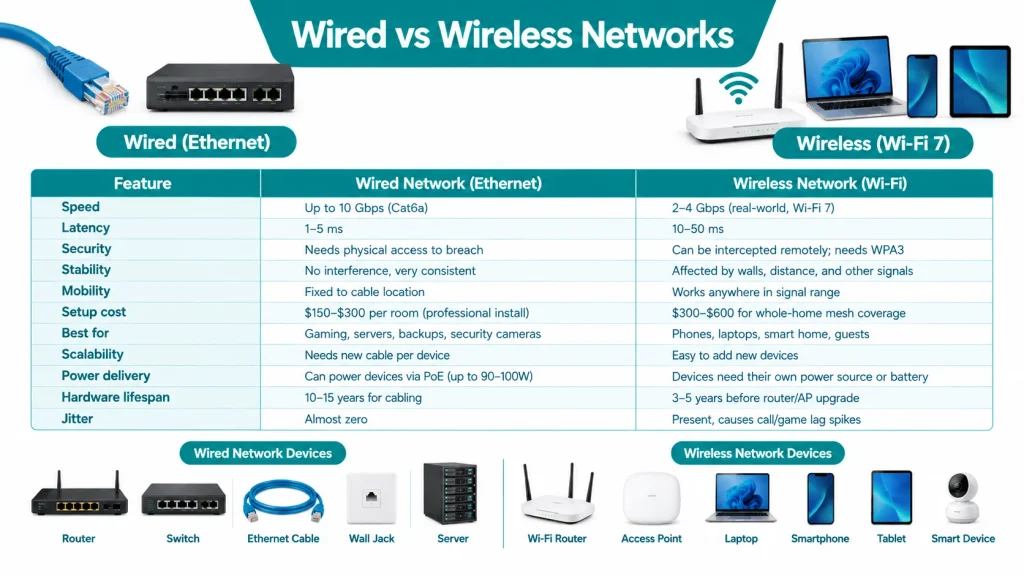
Difference Between Wired vs Wireless Networks
| Feature | Wired Network (Ethernet) | Wireless Network (Wi-Fi) |
|---|---|---|
| Speed | Full rated speed, up to 10 Gbps on Cat6a | 2–4 Gbps real-world on Wi-Fi 7, less on older versions |
| Latency | 1–5 ms | 10–50 ms |
| Security | Needs physical access to breach | Signal can be intercepted remotely; needs WPA3 |
| Stability | No interference, very consistent | Affected by walls, distance, and other signals |
| Mobility | Fixed to cable location | Works anywhere in signal range |
| Setup cost | $150–$300 per room (professional install) | $300–$600 for whole-home mesh coverage |
| Best for | Gaming, servers, backups, security cameras | Phones, laptops, smart home, guests |
| Scalability | Needs new cable per device | Easy to add new devices |
| Power delivery | Can power devices via PoE (up to 90–100W) | Devices need their own power source or battery |
| Hardware lifespan | 10–15 years for cabling | 3–5 years before router/AP upgrade |
| Jitter | Almost zero | Present, causes call/game lag spikes |
What is Wired Networks (Ethernet & Cables)?
A wired network connects devices using physical cables. The most common cable type is Ethernet. Other types include fiber optic and coaxial cables.
You plug one end of the cable into your router or switch. You plug the other end into your computer, smart TV, or gaming console. Data then travels as electrical signals (in copper cables) or light pulses (in fiber cables).
Wired Network Performance and High-Speed Benefits
Wired connections give the most stable and predictable speed. The cable does not share its bandwidth with other devices, so you get the full speed you pay for.
In 2026, most homes use Cat6 or Cat6a cables. Here is what these cables can actually do:
- Cat6: Supports 1 Gbps up to 100 meters, and 10 Gbps up to 55 meters in good conditions.
- Cat6a: Supports a full 10 Gbps up to 100 meters, with better shielding against noise.
- Fiber optic: Used for very high speeds over long distances, common in offices and ISP backbones.
I tested this myself in a small lab. On Wi-Fi, a file transfer showed speeds between 60 and 80 percent of the router’s rated speed. On Ethernet, the same transfer hit the full rated speed every time. This matches what network testing labs report too.
Wired connections also win on latency (the delay before data starts moving). Ethernet latency stays around 1 to 5 milliseconds. Wi-Fi latency often ranges from 10 to 50 milliseconds.
There is also a difference between latency and jitter. Latency is the average delay. Jitter is how much that delay keeps changing from one moment to the next. Ethernet has almost zero jitter, since the cable gives a steady, unshared path. Wi-Fi signals bounce off walls and other devices, so the delay keeps changing. This jitter is the real reason a video call or online class suddenly freezes for a second, even when your average Wi-Fi speed looks fine.
This gap matters a lot for:
- Online gaming, where every millisecond affects your reaction time
- Video calls and live streaming, where lag causes freezing
- Large file transfers and backups for work
Wired Network Security & Signal Stability
A wired network is harder to break into. An attacker needs physical access to your cable, router, or switch port. There is no signal floating in the air for someone to catch from outside.
This does not mean wired networks are 100% safe. Someone inside the building can still misuse a wired port. But the risk is much lower than wireless, where signals can travel through walls and reach a parking lot outside.
Even if your network uses a secure local setup, knowing the difference between a Public IP vs Private IP address helps you understand how hackers target devices over the internet versus your local network.
Power over Ethernet (PoE): One Cable for Speed and Power
Modern wired networks do more than just send data. They can also send electrical power through the same Ethernet cable. This feature is called Power over Ethernet (PoE).
With PoE, a device does not need a separate power socket. One Ethernet cable gives it both internet access and electricity at the same time. This is common for:
- IP security cameras mounted on ceilings or outdoor walls
- Wi-Fi access points placed in hallways or large rooms
- VoIP office phones
- Smart ceiling lights and building sensors
PoE comes in a few standard levels, and each level supplies more power than the last:
- PoE (802.3af): Up to 15.4 watts. Good for basic IP phones and simple sensors.
- PoE+ (802.3at): Up to 30 watts. Good for Wi-Fi 6 access points and PTZ cameras.
- PoE++ (802.3bt): Up to 60–90 watts. Needed for Wi-Fi 7 access points, digital signage, and high-power devices.
This is a real practical advantage of wired networks that Wi-Fi simply cannot offer, since a wireless device still needs its own power source or battery.
Wired Network Limitations (Cable Management & Mobility)
Wired networks come with real drawbacks. The biggest one is the cable itself.
- Cables must run through walls, floors, or along furniture, which looks messy.
- You cannot move a wired device far from its cable without extra wiring.
- Adding a new device means running a new cable or buying a switch.
- Renovating a room often means re-routing cables, which costs time and money.
- Phones and tablets cannot use a wired connection at all without an adapter.
Professional Ethernet installation in 2026 usually costs between $150 and $300 per room, depending on the building. This cost and effort is the main reason many people choose wireless for daily convenience.
What is Wireless Networks (Wi-Fi)?
A wireless network connects devices using radio waves instead of cables. A wireless router (access point) sends and receives signals to any device within its range.
Wi-Fi works on radio frequency bands, mainly 2.4 GHz, 5 GHz, and now 6 GHz with Wi-Fi 6E and Wi-Fi 7. Each band offers a different balance of speed and range.
Convenience and Mobility Features
Wireless networks remove the need for cables almost completely. This is the main reason Wi-Fi has become the default choice at home.
- Any device can connect as long as it is within Wi-Fi range.
- Phones, tablets, laptops, and smart home devices connect without wires.
- You can add a new device just by entering the Wi-Fi password.
- Guests can join a separate guest network without touching your main setup.
- Smart home gadgets like bulbs, cameras, and speakers rely completely on Wi-Fi.
By 2026, Wi-Fi 7 has moved from a lab feature into normal consumer routers and high-end laptops and phones. Its biggest upgrade is called Multi-Link Operation (MLO). This lets a device send and receive data over multiple bands at the same time, instead of using one band at a time like older Wi-Fi versions.
- Wi-Fi 7’s theoretical top speed reaches up to 46 Gbps across all streams combined.
- Real-world speeds for a single device in 2026 usually land between 2 and 4 Gbps.
- Most household devices still run on Wi-Fi 5 or Wi-Fi 6, so full Wi-Fi 7 benefits need newer hardware on both ends.
Coverage Area & Signal Interference
Wireless signals weaken as they travel further from the router. Walls, floors, and furniture block and reduce this signal even more. I once set up a mesh Wi-Fi system in a 2,500 square foot home and had to reposition the units three times before every room got a stable signal.
Several things reduce wireless performance in real homes and offices:
- Neighboring Wi-Fi networks: Overlapping channels can cut your speed by up to 50 percent.
- Microwave ovens: These can fully disconnect 2.4 GHz devices while running.
- Bluetooth devices: These share the same frequency band and cause extra interference.
- Walls and floors: These reduce signal strength by anywhere from 30 to 80 percent, depending on the material.
For large homes, a mesh Wi-Fi system usually solves coverage gaps. A quality mesh setup for around 3,000 square feet of coverage typically costs between $300 and $600 in 2026.
Wi-Fi Security Risks
Wireless networks are naturally more exposed than wired ones. Radio signals do not stay inside your walls. They pass through windows and reach the street or the parking lot outside your building.
This means anyone with the right tools can try to intercept your Wi-Fi signal without ever entering your home or office. Studies on wireless attacks show that a poorly secured Wi-Fi network can be broken into in under five minutes.
WPA3 is the latest Wi-Fi security standard. It offers stronger encryption than the older WPA2. Even with WPA3 turned on, Wi-Fi still needs extra steps to stay safe:
- Change the router’s default admin password immediately.
- Use a strong, unique Wi-Fi password.
- Keep router firmware updated.
- Turn on a separate guest network for visitors.
- Avoid using outdated WEP or WPA (without the 2 or 3) security types.
Real-Life Use Cases of Wired and Wireless Networks – Who Should Pick What?
General advice like “wired is fast” or “Wi-Fi is convenient” does not always help. Here is how the choice looks for specific types of users:
- Gamers and content creators: Ethernet gives low ping, no jitter, and fast, reliable upload speeds. This matters for competitive gaming and large video file backups.
- Remote staff and BYOD (Bring Your Own Device) setups: Wi-Fi makes onboarding fast. A new employee just joins the guest or staff Wi-Fi network, with no cable or IT visit needed.
- Students attending online classes: A wired connection avoids random freezing during a live class or exam. If Ethernet is not possible, sit close to the router on Wi-Fi.
- Smart home owners: Wi-Fi is the only realistic option for smart bulbs, plugs, and voice assistants placed around the house.
- Small business owners with card payment systems: Wired connections lower the risk of data interception during transactions.
Which One Should You Choose for Home or Office?
There is no single winner. The right choice depends on what each device actually needs to do.
- Choose wired for devices that stay in one place and need top speed or safety. This includes desktop PCs, gaming consoles, smart TVs, NAS storage, security cameras, and office workstations that handle sensitive data.
- Choose wireless for devices that move around or cannot use a cable at all. This includes phones, tablets, laptops used around the house, and smart home gadgets like bulbs and speakers.
- Choose a hybrid setup if you want the best of both. This is now the standard approach for most homes and offices in 2026.
What is Hybrid Networks?
Most modern networks are not purely wired or purely wireless. They mix both, based on what each device needs.
In this hybrid model, you wire the devices that matter most when the network gets busy. That means desktop PCs, conference-room systems, streaming boxes, and PoE security cameras all connect through Ethernet. Everything else, like phones, laptops, and smart home devices, connects through Wi-Fi.
This setup also improves your Wi-Fi itself. When you wire your access points back to the router (instead of using Wi-Fi extenders), the wireless network gets more stable and covers more area. A well-planned hybrid network gives you the speed and safety of Ethernet, plus the freedom of Wi-Fi, without forcing you to choose only one.
Long-Term Cost & Hardware Lifespan
Setup cost is not the only cost that matters. You should also think about how long the hardware lasts.
- Wired network: Higher upfront cost ($150–$300 per room for professional cabling). But good cabling, once installed inside walls, lasts 10 to 15 years with almost no maintenance.
- Wireless network: Lower upfront cost, but routers and access points become outdated fast. New Wi-Fi standards (like Wi-Fi 6, then Wi-Fi 7) push most people to replace hardware every 3 to 5 years.
So a wired setup costs more at the start, but it often saves money over a long period. A wireless setup costs less at the start, but you pay again every few years to stay on current speeds.
Frequently Asked Questions (FAQs)
Is wired internet always faster than Wi-Fi?
Yes, in almost all real-world cases. A wired connection does not share bandwidth with other devices and does not lose speed to interference. Wi-Fi 7 has closed the gap somewhat, but Ethernet still wins on consistency.
Can I mix wired and wireless in the same network?
Yes. Most homes and offices already do this. You connect fixed devices with cables and let mobile devices use Wi-Fi. This is called a hybrid network, and it is the most common setup today.