
TL;DR (Quick Answer)
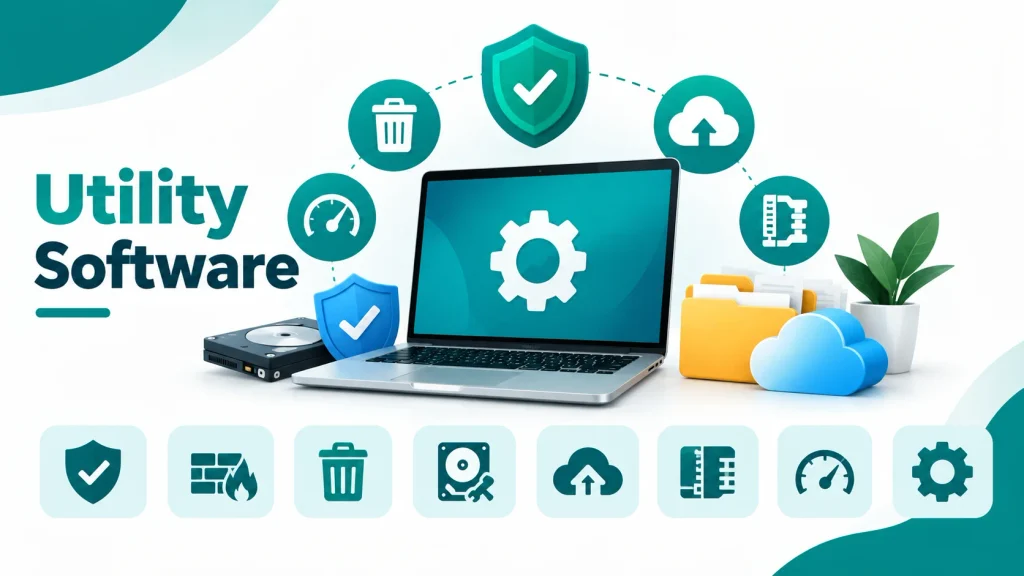
Utility software is a type of system software. It helps maintain, protect and manage a computer. Application software helps you do tasks, such as writing documents or playing games. Utility software works in the background. It scans for viruses, compresses files, backs up data and cleans the disk.
What Is Utility Software in a Computer?
Utility software is a program that helps maintain, protect, and manage a computer system. It supports the operating system. It does small but important jobs. These include scanning for viruses, cleaning junk files, backing up data, and compressing files.
Computer software has two main groups:
- System software runs and controls the computer. The operating system and utility software belong here.
- Application software helps you do tasks. Word processors, browsers, and games belong here.
Some utility software comes with the operating system. For example, Windows includes Windows Security, Task Manager, and File Explorer. macOS includes Time Machine and Disk Utility. You can also install extra utilities, such as 7-Zip.
From my classroom: Many of my students think a web browser is utility software, because it feels like a “tool.” They also think Windows itself is a utility. I now ask one question: “Does this program help me do my own task, or does it look after the computer?” If it helps with your task, it is application software. If it looks after the computer, it is utility software.
What Is the Purpose of Utility Software?
The purpose of utility software is to keep a computer safe, clean, and working well. Purpose means why we use it.
Utility software helps in these ways:
- Protects the computer from viruses and other malware
- Protects data by making backups and locking files with encryption
- Keeps the computer fast by removing junk files and closing heavy programs
- Manages storage by organising, compressing and formatting disks
- Supports the operating system with tasks it does not do well alone
Without utility software, a computer still starts. But it becomes slower, less safe and harder to manage over time.
What Is the Function of Utility Software?
The function of utility software is the job it does. Each utility has one main job. Function means what it does.
| Function | Example utility | What it does |
|---|---|---|
| Protect from malware | Antivirus | Finds and removes harmful programs |
| Block unwanted network traffic | Firewall | Allows or blocks connections using rules |
| Remove junk files | Disk Cleanup | Deletes temporary files to free space |
| Arrange file pieces | Defragmenter | Puts split file pieces together on a hard disk |
| Copy data safely | Backup tool | Saves a second copy of your files |
| Hide data | Encryption tool | Turns data into unreadable code |
| Reduce file size | Compression tool | Makes files smaller |
| Watch running programs | Task Manager | Shows which programs use the CPU and memory |
What Are the Main Types of Utility Software?
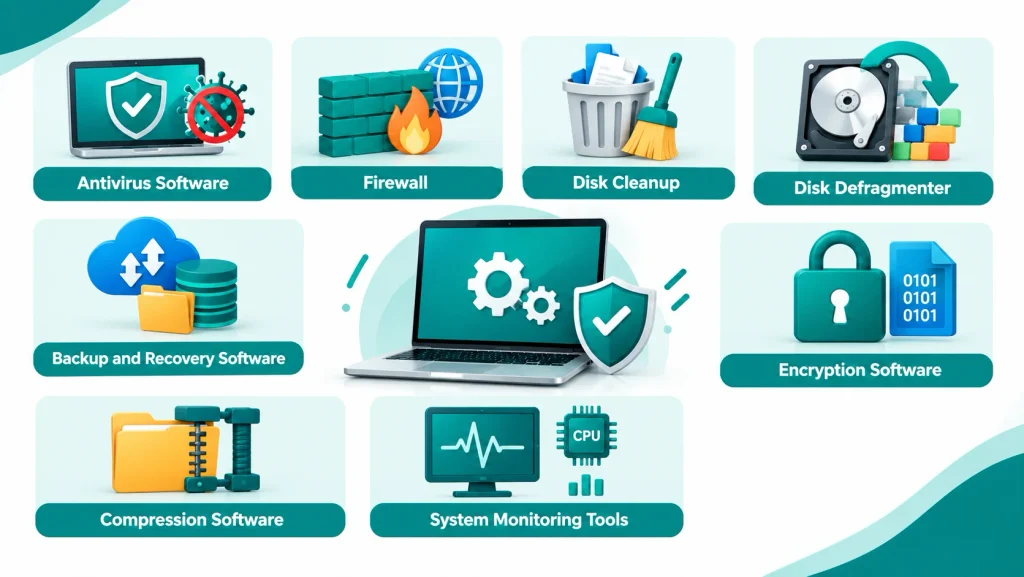
Here are the main types of utility software with examples:
1. Antivirus Software
Antivirus software finds, blocks, and removes malware. Malware means harmful programs such as viruses, worms, ransomware and spyware.
Examples: Windows Security (with Microsoft Defender Antivirus) is built into Windows 10 and 11. Many other brands offer antivirus tools too.
2. Firewall
A firewall checks the data that enters and leaves your computer. It follows rules to allow or block each connection. Examples: Windows includes a firewall by default. macOS also has a built-in firewall that you can turn on in settings.
3. Disk Cleanup
Disk cleanup tools find and delete files that you do not need. This frees storage space and keeps your computer tidy.
What it removes:
- Temporary files made by programs
- Files in the Recycle Bin
- Cache files and thumbnail files
- Old files left after system updates
Examples: Windows offers Storage Sense in Settings. The older Disk Cleanup tool is also available on many Windows versions. Phones and Macs have similar storage tools.
4. Disk Defragmenter
On a hard disk drive (HDD), big files are split into pieces stored in different places. This is called fragmentation. A defragmenter puts the pieces together, so the disk reads files faster.
- Defragmentation helps HDDs.
- It does not help solid-state drives (SSDs).
- Windows runs a different task for SSDs, called TRIM, so you do not defragment them by hand.
5. Backup and Recovery Software
Backup software makes a second copy of your files. If your disk fails or you delete a file by mistake, you restore it from the copy. Examples are Windows Backup, File History and Time Machine on Mac. Many people also use cloud storage for backup.
Examples: Windows Backup, File History, Time Machine on Mac, and cloud services such as OneDrive, Google Drive and iCloud.
6. Encryption Software
Encryption turns readable data into unreadable code. Only a person with the correct key can read it again. BitLocker on supported Windows editions and FileVault on macOS encrypt a whole drive.
Two ways to use it:
- Full disk encryption protects the whole drive. BitLocker (on supported Windows editions) and FileVault (on macOS) do this. Some Windows Home devices offer a similar feature called device encryption.
- File encryption protects single files or folders. Many compression tools can lock a ZIP file with a password.
7. File Management Utilities
A file management utility helps you organise the files and folders on your computer.
What it does:
- Creates, copies, moves and renames files
- Deletes files and restores them from the Recycle Bin
- Searches for files by name, date or type
- Shows file size, type and location in the properties window
Examples: File Explorer on Windows and Finder on Mac. Linux systems have their own file managers, such as Files (Nautilus).
8. Disk Formatting and Partitioning Tools
These tools prepare a disk so the computer can store files on it.
Formatting sets up a file system on a disk. Be careful, because formatting erases the data on that disk.
Partitioning divides one physical disk into separate sections. For example, you can make one section for Windows (C: drive) and another for your files (D: drive).
Common file systems:
| File system | Where people use it | Key point |
|---|---|---|
| NTFS | Windows system drives | Default for Windows. Supports large files and security features. |
| FAT32 | Old USB drives, memory cards | Works on many devices, but a single file cannot be larger than 4 GB. |
| exFAT | USB drives, external disks | Handles large files and works on both Windows and Mac. |
Examples: Disk Management on Windows and Disk Utility on macOS.
9. Task Manager and System Monitors
A system monitor shows what your computer is doing right now. It tracks the programs that run and the resources they use. Resources are the CPU, memory (RAM), disk and network.
What you can do with Task Manager on Windows:
- See which programs use the most CPU or memory
- Close a program that stops responding (select it and click End task)
- Check the Startup apps list and turn off programs that slow your start time
- Watch the Performance tab to see how busy your computer is
How to open it: Press Ctrl + Shift + Esc.
Examples: Task Manager on Windows and Activity Monitor on macOS.
What Is a Compression Software Utility?
A compression software utility is a tool that makes files smaller. It stores the same data in less space. You can then save storage, send files faster and upload files more easily.
How Does Compression Work?
Compression finds repeated patterns and replaces them with shorter codes. Here is a very simple example:
- Original data:
AAAAABBB(8 characters) - Compressed data:
5A3B(4 characters)
This idea is called run-length encoding. Real tools use more advanced methods, but the main idea is the same.
Lossless vs Lossy Compression
| Type | What happens | Examples |
|---|---|---|
| Lossless | No data is lost. You get the exact original file back. | ZIP, PNG, FLAC |
| Lossy | Some data is removed forever to make the file much smaller. | JPEG, MP3 |
Use lossless compression for documents, code and anything that must stay exact. Lossy compression suits photos and music, where small changes are hard to notice.
What Are the Advantages and Disadvantages of Utility Software?
Here are some benefits and drawbacks of Utility Software:
Advantages
- Improves security
- Helps keep the computer fast
- Saves storage space
- Protects data with backups
- Makes file management easier
- Automates routine tasks
Disadvantages
- Some tools slow the computer when they run in the background
- Some good tools cost money
- Fake “PC cleaner” programs exist and can harm your computer
- Too many utilities can cause conflicts
FAQs
Is an operating system a utility software?
No. The operating system is system software that controls hardware and runs programs. Utility software supports it.
What is the difference between utility software and application software?
Utility software maintains and protects the computer. Application software helps you do tasks, such as writing or editing.
Do phones use utility software?
Yes. Android phones use Google Play Protect, file managers and storage tools. iPhones have iPhone Storage, iCloud Backup and built-in security features. You rarely need extra apps.