
Every second, billions of people click, scroll, and search through web browsers without thinking about the complex operations happening behind the scenes. Your browser transforms simple clicks into complete websites, protects your personal data from cybercriminals, and manages dozens of tasks simultaneously. Understanding what your browser actually does helps you browse more effectively, stay safer, and use the internet more efficiently. This guide explains the essential functions web browsers perform in 2026.
To better understand these functions, first learn what a web browser is and its basic components.
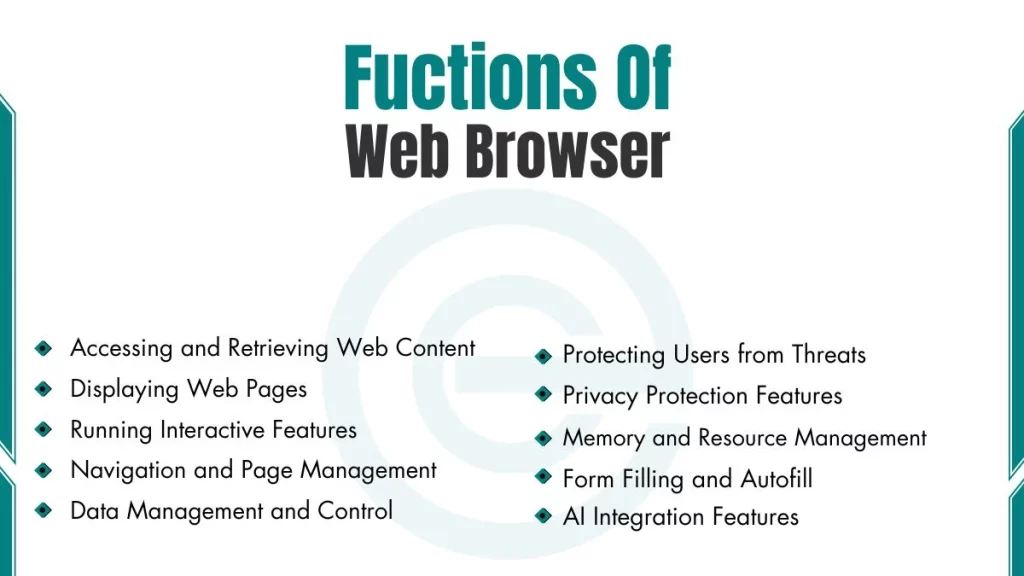
What are the Primary Functions of a Web Browser?
The following are the primary functions of a web browser:
1. Accessing and Retrieving Web Content
The browser fetches websites from web servers located worldwide. This process starts when you type a web address (URL) into the address bar. The browser sends a request to the appropriate server using HTTP or HTTPS protocols. The server responds by sending back files that contain the website’s content.
The browser handles different types of content during retrieval:
- HTML files that structure the page content
- CSS files that control the visual styling
- JavaScript files that add interactivity
- Images, videos, and other media files
- Fonts and other design resources
The Domain Name System (DNS) plays a crucial role in this process. DNS converts human-readable website names like www.example.com into IP addresses that computers use to locate servers. The browser performs this translation automatically before connecting to any website.
2. Displaying Web Pages
After retrieving content, the browser must render it into a visual format. The rendering engine translates code into the web pages you see on screen. This engine processes HTML to create the page structure. It then applies CSS styles to determine colors, fonts, layouts, and spacing.
Different browsers use different rendering engines:
- Blink powers Chrome, Edge, Opera, and Brave
- WebKit runs Safari and iOS browsers
- Gecko operates Firefox
The rendering process follows several steps. First, the browser creates a Document Object Model (DOM) tree from HTML. Next, it builds a CSS Object Model (CSSOM) from style rules. Then it combines these into a render tree. Finally, it calculates layout positions and paints pixels on the screen. This entire process happens in milliseconds for most web pages.
3. Running Interactive Features
Modern websites require more than just static display. The browser executes JavaScript code to enable dynamic content and user interactions. JavaScript engines process this code and make websites responsive to your actions.
Major JavaScript engines include:
- V8 in Chrome and Edge
- JavaScriptCore in Safari
- SpiderMonkey in Firefox
Interactive features powered by JavaScript include form validation, dropdown menus, image sliders, live search suggestions, and shopping cart updates. Web applications like Google Docs and Gmail rely heavily on JavaScript to function like desktop programs.
4. Navigation and Page Management
Browsers provide tools for moving between web pages efficiently. The back and forward buttons let you revisit previously viewed pages. The refresh button reloads the current page with updated content.
Tab management enables multiple pages to open simultaneously. You can switch between tabs without losing your place. Modern browsers remember open tabs and restore them after crashes. Bookmark features save favorite websites for quick access later.
5. Protecting Users from Threats
Web browsers implement multiple security layers to protect users online. HTTPS encryption secures the connection between your browser and websites. This encryption prevents others from intercepting your data during transmission. The browser checks SSL/TLS certificates to verify website authenticity.
Browsers actively block dangerous content:
- Phishing websites that steal personal information
- Malware downloads that infect your device
- Suspicious scripts that could harm your system
- Unsafe file downloads
- Mixed content that combines secure and insecure elements
6. Privacy Protection Features
Privacy features in 2026 browsers have become more sophisticated. Tracker blocking prevents websites from following your activity across the internet. Third-party cookies, which companies use to track users, face automatic blocking in most modern browsers.
Privacy-focused browsers offer enhanced protection:
- Brave blocks ads and trackers by default
- Firefox provides Enhanced Tracking Protection
- DuckDuckGo focuses on zero tracking
- Tor Browser routes traffic for maximum anonymity
7. Data Management and Control
Browsers give users control over their stored data. Password managers securely save login credentials with encryption. Cookie management tools let you view, delete, or block cookies from specific sites. You can clear browsing history, cached files, and download records at any time.
Site permissions control what websites can access. You manage permissions for camera use, microphone access, location data, notifications, and file downloads.
8. Memory and Resource Management
Modern browsers manage system resources efficiently. Tab sleeping automatically pauses inactive tabs to reduce memory usage. This feature helps computers with limited RAM run more smoothly. Hardware acceleration uses your graphics card to render complex visual elements faster.
Browsers monitor and limit resource consumption:
- CPU usage control prevents excessive processor strain
- Battery optimization extends laptop and mobile device life
- Memory cleanup removes unnecessary data
- Tab discarding frees resources from unused tabs
9. AI Integration Features
Artificial intelligence has transformed browser functionality in 2026. Built-in AI assistants help users with various tasks directly within the browser. Google Chrome integrates Gemini AI in a sidebar panel. Microsoft Edge includes Copilot for intelligent assistance. Brave offers Leo, while Opera provides Aria.
AI-powered features include:
- Page summarization that condenses long articles
- Content generation for writing assistance
- Smart search suggestions based on context
- Translation services powered by neural networks
- Automated browsing tasks like research and comparisons
ChatGPT Atlas and Perplexity Comet represent dedicated AI browsers that perform autonomous web tasks. These browsers can research topics, compare products, and compile information across multiple websites automatically.
10. Form Filling and Autofill
Autofill saves time when completing online forms. The browser remembers your name, address, phone number, and email. Payment information is stored securely for faster checkout. Multiple profiles let you switch between personal and work information.
Form validation checks entries before submission. The browser highlights errors like missing required fields or invalid email formats. This prevents submission failures and reduces frustration.
11. Appearance Customization
Browsers allow extensive visual customization. Themes and skins change the browser’s overall appearance with different colors and designs. Custom backgrounds personalize the new tab page. Toolbar arrangement lets you add, remove, or reposition buttons.
Button placement controls which features appear in easy reach. New tab page customization adds shortcuts, widgets, or news feeds. Dark themes work throughout the interface, not just on web pages.
12. Extension and Add-on Support
Browser extensions expand functionality beyond default features. Extensions are installed from official marketplaces like Chrome Web Store or Firefox Add-ons. They integrate seamlessly with the browser interface.
Popular extension categories include:
- Ad blockers like uBlock Origin
- Password managers such as Bitwarden
- Productivity tools like Todoist
- Developer tools for coding
- Grammar checkers like Grammarly