
Every day, you press keys thousands of times to write essays, chat with friends, play games, and search the internet. But have you ever wondered about the function of keyboard and how these simple buttons control everything on your computer? In this guide, I tell you everything you need to know about keyboard functions, from basic typing to advanced shortcuts that can save you hours of work.
What are the Primary Functions of Keyboard in Computer?
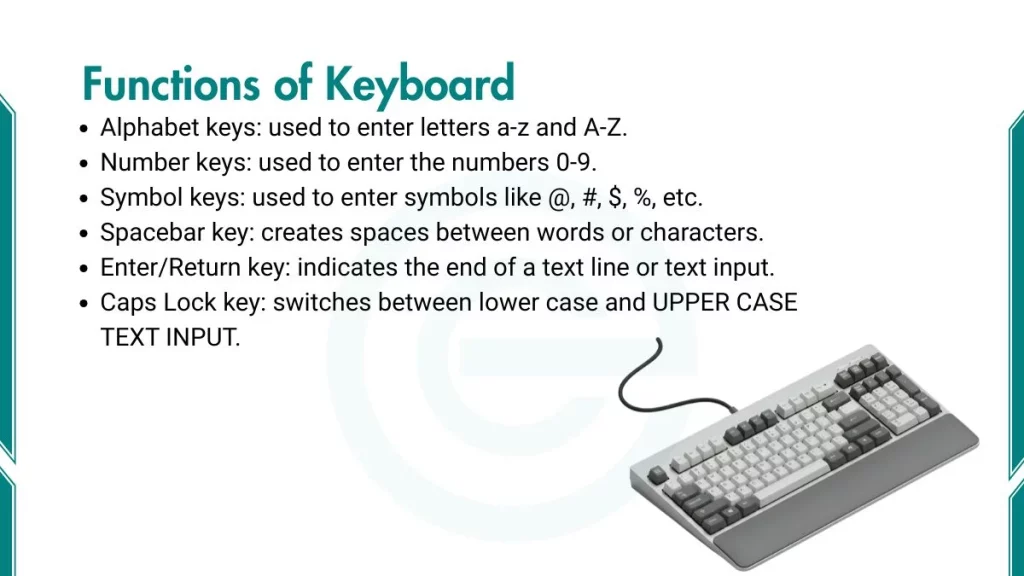
Here are the primary functions of a keyboard in computer:
1. Text Input and Data Entry
The most basic function of a keyboard is typing. You use it to:
- Type letters, numbers, and symbols into documents
- Write emails and messages
- Fill out online forms
- Search for information on the internet
- Create spreadsheets and presentations
Every time you type a school assignment or send a message, you use the text input function. This is the keyboard’s most important job.
2. Command Execution
Keyboards do more than just type. They execute commands that control your computer:
- Opening and closing programs
- Saving your work
- Running specific software functions
- Accessing menus and settings
- Shutting down or restarting your system
Commands make computers respond to your instructions. Instead of clicking through multiple menus, you can use keyboard commands to work faster.
3. Navigation and Control
Keyboards help you move around your computer:
- Moving the cursor through documents
- Scrolling up and down web pages
- Selecting and highlighting text
- Navigating between different programs
- Controlling media playback (play, pause, stop)
You can use navigation keys like arrow keys and Page Up/Page Down to scroll through documents and web pages. This navigation function reduces your reliance on the mouse.
4. Gaming and Entertainment
In gaming, specific keys like WASD, spacebar, and arrow keys act as controls to move, jump, or perform actions. Many games use keyboards as the main control method. Gaming keyboards often have special features:
- Faster response times
- Programmable keys for game actions
- Backlit keys for playing in dark rooms
- Special gaming modes
The entertainment function makes keyboards versatile devices beyond just work and study.
What are the Different Parts of a Keyboard?
Here are different keyboard parts and their functions:
1. Alphanumeric Keys (Main Typing Area)
The alphanumeric section contains the letters and numbers you use most often:
- Letter Keys: A through Z arranged in the QWERTY pattern
- Number Row: Numbers 0 through 9 at the top
- Special Characters: Symbols like @, #, $, %, &, and more
- Space Bar: The long key at the bottom that adds spaces between words
QWERTY Layout
The QWERTY layout gets its name from the first six letters in the top row. This layout was designed for old typewriters. According to legend, this layout helped keep mechanical typewriters’ metal arms from colliding and jamming as people typed.
Alternative Layouts
Other keyboard layouts exist around the world:
- Dvorak: Places vowels on the left and common consonants on the right
- QWERTZ: Common in Germany and Central Europe
- AZERTY: Used in France and Belgium
- ABCDE: Alphabetical arrangement (rare)
Most keyboards in the United States use the QWERTY layout. You will encounter this layout on almost every computer you use.
Home Row Positioning
The home row is where you place your fingers when you begin typing. Your fingers should rest on these keys:
- Left hand: A, S, D, F (starting with pinky on A)
- Right hand: J, K, L, ; (starting with index finger on J)
- Thumbs: Both rest on the space bar
The F and J keys have small bumps. These bumps help you find the home row without looking at the keyboard.
2. Function Keys (F1-F12)
Function keys sit at the top of your keyboard. Each key performs specific tasks:
- F1: Opens help menus in most programs
- F2: Renames selected files or folders
- F5: Refreshes web pages or documents
- F11: Toggles full-screen mode in browsers
- F12: Opens “Save As” dialog in many programs
The function keys typically perform a very specific task within a particular software application. Different programs use these keys for different purposes. On laptops, you often need to press the Fn key along with function keys to activate them.
3. Modifier Keys
Modifier keys change how other keys work. They include:
Shift Key
- Creates uppercase letters when typing
- Accesses symbols above number keys (!, @, #, etc.)
- Selects text when used with the arrow keys
Control (Ctrl) Key
- Used in key combinations to execute various types of commands
- Creates shortcuts like Ctrl+C (copy) and Ctrl+V (paste)
- Works differently on Windows and Mac systems
Alt (Alternate) Key
- Accesses menu options in programs
- Creates special characters when combined with number codes
- In older systems, Ctrl + Alt + Del (Control-Alt-Delete) rebooted your computer
Windows/Command Key
- Opens the Start menu on Windows computers
- Creates system-level shortcuts
- On Mac, the Command key (⌘) serves a similar purpose
Modifier keys rarely work alone. They modify the function of other keys when pressed together.
4. Navigation Keys
Navigation keys help you move around documents and web pages:
- Arrow Keys: Move cursor up, down, left, or right
- Home: Jumps to the beginning of a line or document
- End: Jumps to the end of a line or document
- Page Up: Scrolls up one screen
- Page Down: Scrolls down one screen
These keys reduce your need for a mouse. You can navigate entire documents using only navigation keys.
5. Editing Keys
Editing keys help you modify text and content:
- Backspace: Erases the character to the left of the cursor
- Delete: Erases the character to the right of the cursor
- Enter/Return: Creates a new line or confirms an action
- Tab: Moves cursor to the next tab stop or form field
- Caps Lock: When activated, all subsequent typed letters appear in capital form
- Insert: Switches between insert mode and overtype mode
The space bar is a long bar at the bottom that makes a space between words. It is one of the most frequently used keys on the keyboard.
6. Numeric Keypad (10-key)
The numeric keypad appears on the right side of full-size keyboards. It includes:
- Numbers 0 through 9 arranged like a calculator
- Mathematical operators (+, -, *, /)
- Enter key for calculations
- Decimal point
- Num Lock key to toggle between number and navigation modes
The numeric keypad enables faster entry of numbers. This is especially useful for spreadsheet work and data entry. Many laptops do not have a separate numeric keypad due to space constraints.
7. Special Function Keys
Additional special keys include:
- Escape (Esc): Cancels operations or closes dialog boxes
- Print Screen: Captures a screenshot of your screen
- Scroll Lock: Rarely used today; originally controlled scrolling behavior
- Pause/Break: Pauses system processes (rarely used on modern computers)
These special keys serve specific purposes. You may not use them daily, but they become important for certain tasks.
What are the Advanced Keyboard Functions?
Here are the advanced functions of keyboard:
1. Accessibility Features
Operating systems include keyboard features for users with disabilities:
Sticky Keys
- Allows pressing one key at a time for shortcuts instead of simultaneous pressing
- Helpful for users who have difficulty holding multiple keys
- Example: Press Shift, release it, then press A for capital A
Filter Keys
- Ignores brief or repeated keystrokes
- Helps users with tremors or slow motor control
- Prevents accidental double-presses
Toggle Keys
- Plays a sound when Caps Lock, Num Lock, or Scroll Lock is pressed
- Provides audio feedback about key status
- Useful for users with visual impairments
On-Screen Keyboard
- Virtual keyboard displayed on screen
- Operated with mouse or touch
- Useful when physical keyboard is unavailable or difficult to use
These accessibility features make computers usable for everyone. They demonstrate the flexibility of keyboard input.
2. Multimedia Controls
Modern keyboards often include special keys for media control:
- Volume: Increase, decrease, or mute sound
- Playback: Play, pause, stop, skip forward, skip back
- Screen Brightness: Adjust display brightness
- Launch Applications: Open email, browser, calculator, or other programs
Many modern keyboards come with dedicated multimedia buttons for controlling music, videos, or volume. These controls save time when listening to music or watching videos while working.