Every time you press the power button on your computer, a complex series of events occurs within seconds. Your blank screen transforms into a functional workspace. This transformation happens through a process called booting. Understanding this fundamental process helps students and technology enthusiasts grasp how computers actually start working.
What is Booting in Computer ?
Booting refers to the process of starting a computer system and loading the operating system into main memory. The term “booting” derives from “bootstrapping,” which describes the system’s ability to start itself without external assistance.
When a computer powers on, the central processing unit contains no software in its main memory. The system must load essential software components into random access memory before any programs can execute. This loading sequence involves multiple stages that verify hardware functionality and initialize system components.
Also Read: What is Boot Menu in Computer
Why is Booting Important?
The booting process performs several critical functions in computer systems:
- Hardware-Software Communication: It establishes communication between hardware components and software programs
- Operating System Loading: It loads the operating system kernel into RAM, which manages system resources
- Component Initialization: It activates the processor, memory modules, storage devices, and peripheral equipment in the correct order
- System Verification: It verifies that all connected devices function properly before the operating system loads
When booting fails, the computer becomes unusable. Users cannot access files, run applications, or perform any computing tasks.
Types of Booting in Computer
Computer systems employ two primary booting methods depending on the initial system state and user requirements.
1. Cold Boot (Hard Boot)
Cold booting starts a computer from a completely powered-off state by pressing the power button. The system undergoes complete hardware initialization and performs comprehensive diagnostic checks.
Characteristics of Cold Boot:
- Executes Power-On Self-Test to verify hardware integrity
- Clears all data from random access memory
- Performs thorough system component verification
- Takes longer to complete than warm booting
- Provides fresh system state without residual data
2. Warm Boot (Soft Boot)
Warm booting restarts the computer without turning off the power completely. The system maintains partial power to components and skips some initialization steps.
Characteristics of Warm Boot:
- Bypasses Power-On Self-Test procedures
- Maintains power to system components
- Completes restart faster than cold boot
- Preserves some system state information
- Initiated through software commands or key combinations
Differences Between Cold and Warm Booting
| Aspect | Cold Boot | Warm Boot |
|---|---|---|
| Starting State | Completely powered off | Already powered on |
| Speed | Slower | Faster |
| Hardware Tests | Complete POST verification | Limited verification |
| Power Supply | Interrupted | Continuous |
| Use Cases | Hardware troubleshooting, extended shutdown | Routine restarts, software updates |
What are the 7 Steps of the Booting Process?
The boot sequence follows a precise order of operations from initial power-on to operational system state. Here are step by step breakdown of booting process in computer:
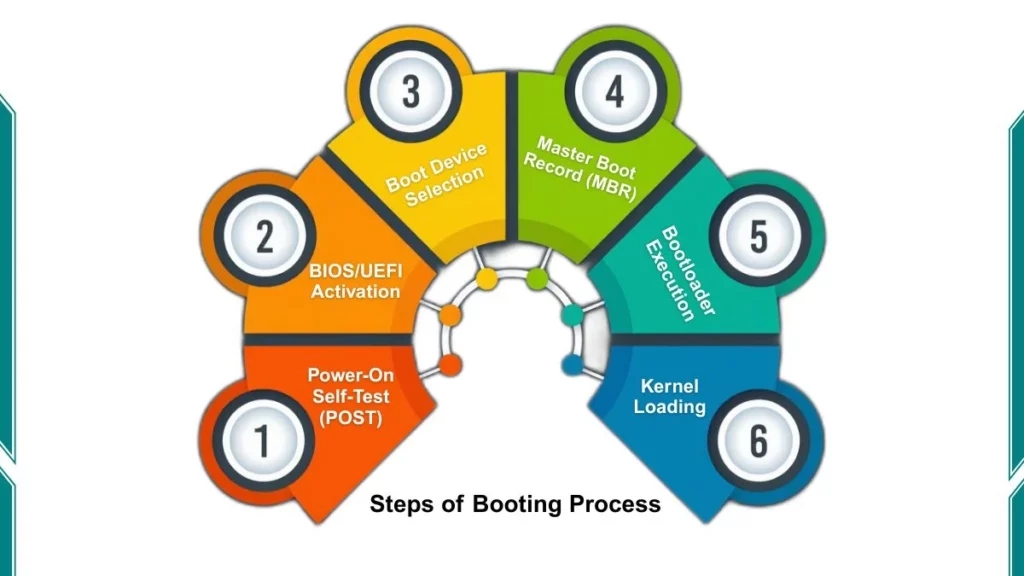
Step 1: Power-On Self-Test (POST)
The Power-On Self-Test verifies that key hardware components like the central processing unit, random access memory, and storage devices function properly. The system firmware executes this diagnostic sequence immediately after receiving electrical power.
POST checks multiple components:
- Central processing unit functionality
- Random access memory integrity and capacity
- Keyboard and input device connectivity
- Video display adapter operation
- Storage device detection and accessibility
- System clock and timing circuits
If hardware problems exist, the system displays error messages or produces beep codes to indicate specific failures. Successful POST completion allows the boot process to continue.
Step 2: BIOS/UEFI Activation
The system firmware provides the first layer of software control. Two firmware standards exist in modern computers.
Basic Input/Output System (BIOS):
BIOS is the traditional firmware interface stored in read-only memory on the motherboard. It operates in 16-bit mode and relies on the Master Boot Record for bootloader location. Legacy systems and older computers predominantly use BIOS.
Unified Extensible Firmware Interface (UEFI):
UEFI is the modern firmware replacement offering faster boot times, support for drives larger than 2TB, graphical interfaces, and network capabilities before operating system loading. Contemporary computers implement UEFI as the standard firmware interface.
Accessing Firmware Settings:
Users can access firmware settings during startup by pressing specific keys such as F2, Delete, F10, or Escape. These settings control hardware configuration, boot device priority, and system security options.
Step 3: Boot Device Selection
The firmware searches for bootable devices according to a configured boot sequence or boot order. This priority list determines which storage device the system attempts to boot from first.
Common boot devices include:
- Internal hard disk drives
- Solid-state drives
- Universal serial bus flash drives
- Optical disc drives (CD/DVD)
- Network boot servers
- External storage devices
The firmware examines each device in sequence until it locates valid boot information. Users can modify boot order through firmware settings to prioritize different devices for operating system installation or recovery procedures.
Step 4: Master Boot Record or GUID Partition Table
The Master Boot Record (MBR) resides at the beginning of the storage device and contains partition information, as well as bootloader location data. BIOS systems utilize Master Boot Record structure.
Master Boot Record (MBR):
- Located in the first sector of the boot device
- Contains partition table with up to four primary partitions
- Stores bootloader code in boot sector
- Supports disks up to 2 terabytes
GUID Partition Table (GPT):
- Modern partitioning scheme used with UEFI
- Supports disks larger than 2 terabytes
- Allows virtually unlimited partitions
- Provides redundancy and error detection features
- Offers better data integrity protection
The firmware reads this structure to locate and execute the bootloader program.
Step 5: Bootloader Execution
The bootloader is a small program responsible for loading the operating system into memory. Different operating systems employ specific bootloaders tailored to their requirements.
Common Bootloaders:
- GRUB (Grand Unified Bootloader): Used in Linux distributions, provides menu for kernel selection
- Windows Boot Manager: Manages Windows operating system loading and multi-boot configurations
- rEFInd: Cross-platform bootloader supporting multiple operating systems
- NTLDR: Legacy Windows bootloader for older Windows versions
The bootloader performs critical functions including locating the operating system kernel, loading it into random access memory, and passing control to kernel initialization routines.
Step 6: Kernel Loading
The operating system kernel is the core component that manages system resources and enables communication between hardware and software. The bootloader loads the kernel file from storage into random access memory.
Kernel initialization process includes:
- Detecting and configuring hardware components
- Initializing memory management systems
- Loading essential device drivers
- Mounting the root filesystem
- Setting up process management structures
- Establishing system security frameworks
The kernel operates with direct hardware access and highest privilege levels. It provides fundamental services that all other software depends upon.
Step 7: Operating System Initialization
After kernel loading, the operating system completes its startup sequence by initializing user-space components.
- System Services Launch: Background processes and system daemons start to provide networking, logging, scheduling, and other essential services.
- Driver Loading: Additional device drivers load to support peripheral hardware like printers, scanners, network adapters, and audio devices. These drivers enable the operating system to communicate with diverse hardware components.
- User Interface Activation: The graphical user interface or command-line interface is initialized. Desktop environments, window managers, and login screens appear.
- User Authentication: If configured, the system presents login credentials prompts. Users enter usernames and passwords to access their computing environment. The boot process completes when the authenticated user reaches their desktop or command prompt.
Boot Modes and Options
Modern operating systems support multiple boot modes for different purposes and situations. Here are different boot modes:
Normal Boot
The standard startup process loads all configured services, drivers, and applications. The system enters its regular operational state with full functionality available.
Safe Mode
Safe mode boots the system with minimal drivers and services for troubleshooting and diagnostics. This mode helps identify problems caused by third-party software or driver conflicts.
Accessing Safe Mode:
- Windows: Press F8 during startup or use Advanced Boot Options
- macOS: Hold Shift key during startup
- Linux: Select recovery mode from GRUB menu
Safe mode loads only essential system files and prevents automatic startup of non-critical programs. Users can diagnose issues, remove problematic software, or repair system configurations.
Recovery Mode
Recovery environments provide tools for system repair and restoration. Users can restore from backup images, repair boot configurations, run diagnostic utilities, and reset system settings without booting into the full operating system.
Fast Startup
Modern systems implement hybrid shutdown procedures where the kernel session saves to disk, similar to hibernation. The next boot restores this saved state rather than performing complete initialization.
This approach reduces boot time significantly but may complicate troubleshooting since it skips full hardware reinitialization.
Frequently Asked Questions (FAQs)
What happens if the booting process fails?
Boot failure prevents the operating system from loading. The computer may display error messages, emit beep codes, show blank screens, or enter restart loops.
What is safe mode and when should I use it?
Safe mode boots with minimal drivers and services for troubleshooting. Use safe mode when normal boot fails, after malware infection, when uninstalling problematic software, or diagnosing driver conflicts.
How does dual booting work?
Dual boot systems contain multiple operating systems on separate partitions. The bootloader presents a menu during startup allowing selection of which operating system to load. Each operating system operates independently when booted.