
Autonomous AI agents are no longer experimental tools. In 2026, they operate as practical assistants for real-world computing tasks. AutoGPT for local tasks allows users to automate research, file management, and code analysis directly on their machines. This guide explains how to configure and run AutoGPT locally with full control and security.
What Is AutoGPT?
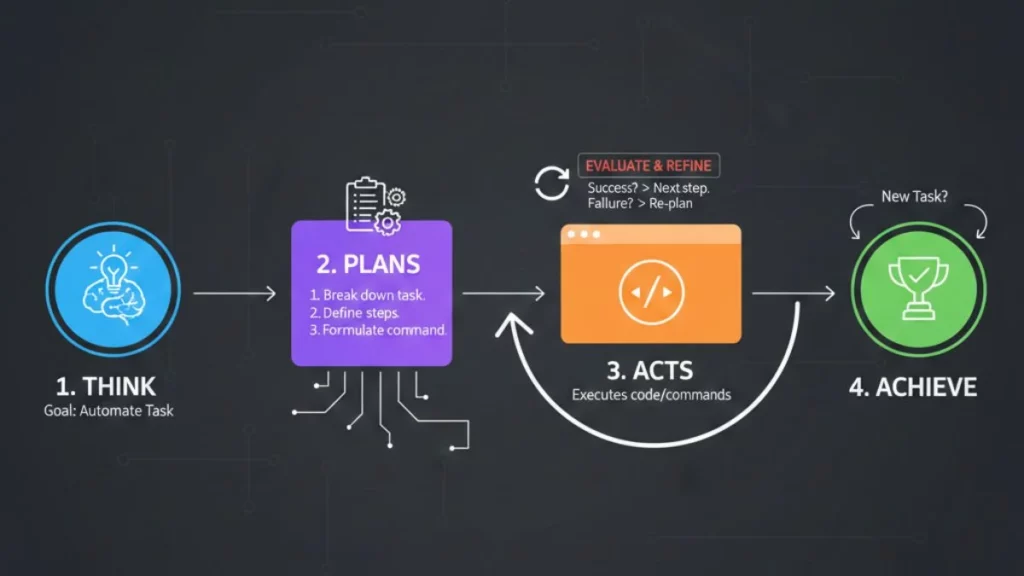
AutoGPT is an autonomous artificial intelligence agent. It performs complex tasks without continuous human input. Unlike traditional chat-based AI systems, AutoGPT plans actions, executes commands, and evaluates results independently.
Running AutoGPT locally enhances privacy, reduces latency, and provides direct access to local files. Consequently, local deployment becomes essential for professionals and researchers.
What are the requirements for AutoGPT? (The Checklist)
Before installation, confirm that the following requirements are available on your system.
- Python 3.11 or higher
Verify the version:python --version - Git
Required to download the AutoGPT source code. - Docker (Recommended)
Docker simplifies dependency management and isolates execution through sandboxing. - API Keys
At least one of the following is required:- OpenAI (GPT-4o, GPT-4o-mini, or o1-preview)
- Anthropic (Claude 3.5)
Pro Tip: In 2026, GPT-4o-mini and o1-preview offer strong reasoning with lower operational costs.
How to Setup AutoGPT For Local Tasks
To setup AutoGPT in computer follow the given steps:
Step 1: Installing the Environment
Install Python and Git
- Download Python from the official Python website.
- Install Git using the appropriate installer for your operating system.
Confirm both installations:
python --version
git --version
Create a Virtual Environment
A virtual environment prevents conflicts with system-level packages.
Execute:
python -m venv autogpt-env
Activate the environment:
- Mac/Linux
source autogpt-env/bin/activate- Windows
.\autogpt-env\Scripts\activateAlways activate the virtual environment before running AutoGPT.
Step 2: Cloning the AutoGPT Repository
Clone the official repository:
git clone https://github.com/Significant-Gravitas/AutoGPT.git
Move into the project directory:
cd AutoGPT
Once the process completes, your local workspace is ready for configuration.
Step 3: Configuration (.env File)
Create the Environment File
Locate the file named .env.template.
Rename it to .env.
This file stores all sensitive configuration values.
Add the API Key
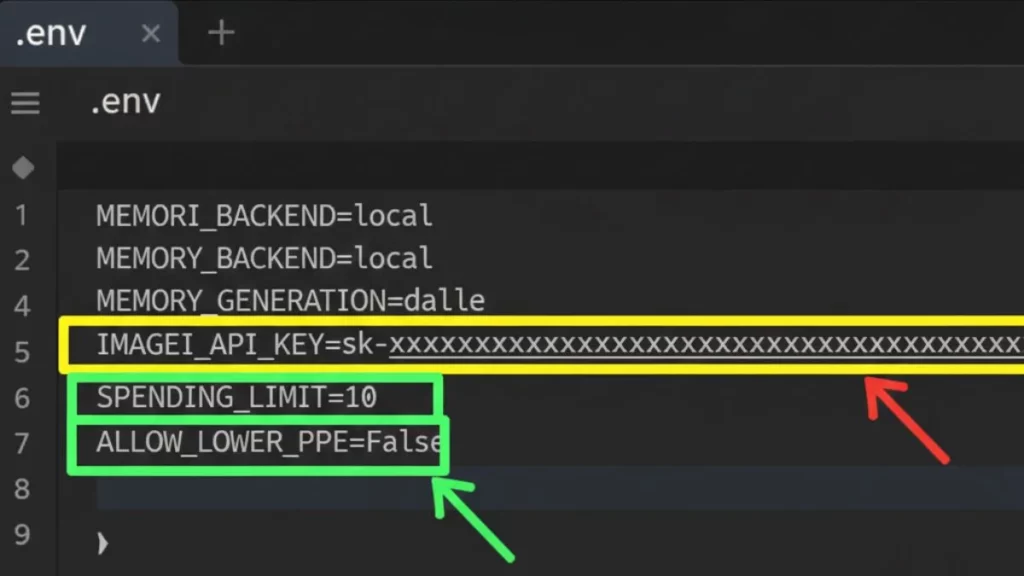
Open the .env file and insert your Application Programming Interface (API) key:
OPENAI_API_KEY=your_api_key_hereSet a Spending Limit (2026 Best Practice)
Define a strict cost limit:
SPENDING_LIMIT=10This step prevents unexpected billing during autonomous execution.
Warning: Never upload or share the
.envfile publicly.
Step 4: Running AutoGPT for Local Tasks
Start AutoGPT with the following command:
python -m autogptAutoGPT initializes and requests a task objective.
Understanding the Local Workspace
AutoGPT operates inside a restricted workspace directory. It can only read and write files within this folder. This limitation protects the rest of your system.
Example Prompt
Use a clear and structured objective:
“Research the latest technology trends of 2026 and save a summary as a .txt file in the workspace.”
AutoGPT plans the task, executes each step, and stores the output automatically.
Common Use Cases for Local Tasks
Here are common uses of AutoGPT for local tasks:
File Management
- AutoGPT organizes disordered directories.
- It renames files and creates logical folder structures.
Local Research
- AutoGPT summarizes local PDF documents.
- Files remain on your machine, ensuring data privacy.
Code Debugging
- AutoGPT analyzes local scripts for errors.
- It identifies issues and proposes corrective changes.
Security Warning (Crucial for 2026)
Use Continuous Mode with Caution
Continuous Mode allows AutoGPT to execute commands automatically.
- Manual approval provides better control.
- Avoid using the
-yflag for sensitive operations.
Critical Warning: Autonomous agents can modify or delete files.
Always review commands before approving execution.
Troubleshooting & FAQ
Error: “API Rate Limit Exceeded”
Cause: Too many requests in a short time.
Solution: Wait a few minutes or switch to GPT-4o-mini.
Error: “Docker Not Found”
Cause: Docker is not installed or not running.
Solution: Install Docker and start the Docker service.
Can AutoGPT Run Fully Offline in 2026?
Yes. AutoGPT can integrate with local language models such as Llama 3.2 using Ollama. This configuration enables 100% offline execution, which is ideal for privacy-sensitive environments.
Why AutoGPT Beats ChatGPT
ChatGPT cannot create and save multi-file outputs locally.
AutoGPT can.
Example:
Ask AutoGPT to:
“Create a 5-page research paper with citations and save it as a formatted text file.”
AutoGPT completes the task end-to-end. This capability defines the real power of autonomous agents.