
Your computer loads slowly. Applications take forever to open. You need a storage upgrade. But which one should you choose?
The choice between Hard Disk Drive (HDD) and Solid State Drive (SSD) affects how your computer performs every single day. This guide explains the key differences between HDD and SSD storage technologies. You will understand which storage type fits your needs best.
What is HDD (Hard Disk Drive)?
A Hard Disk Drive is a data storage device that uses magnetic storage to store and retrieve digital data. HDDs have been the primary storage technology in computers since the 1950s. HDDs store data using magnetic recording on rotating circular platters. These platters are coated with magnetic material.
What is SSD (Solid State Drive)?
A Solid State Drive is a data storage device that uses integrated circuit assemblies to store data persistently. SSDs use flash memory technology and contain no moving parts.
SSDs store data in memory chips using electrical charges. The fundamental storage unit is a memory cell containing a floating gate transistor. When you write data, electrons are trapped in the floating gate through a process called tunneling. The presence or absence of trapped electrons represents binary data (1 or 0).
What is Difference Between HDD and SSD
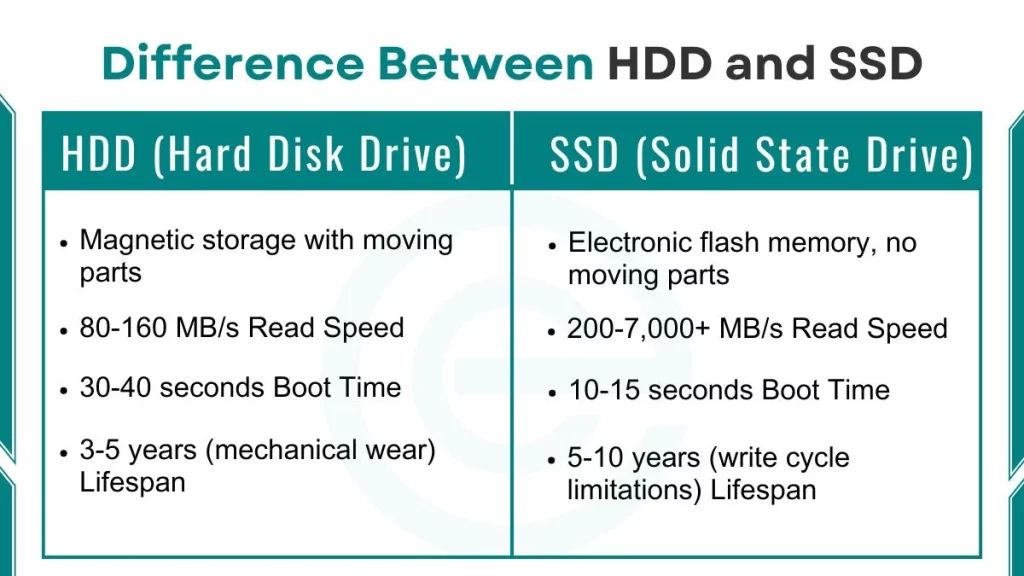
Here are quick comparison table of difference between external ssd and hdd for better understanding:
| Feature | HDD (Hard Disk Drive) | SSD (Solid State Drive) |
|---|---|---|
| Storage Technology | Magnetic recording on rotating platters | Electronic storage in NAND flash memory chips |
| Moving Parts | Yes (platters, read/write heads, actuator arm, motor) | No moving parts (completely electronic) |
| Read Speed | 80-160 MB/s (consumer drives) | SATA: 500-550 MB/s; NVMe: 3,000-7,000+ MB/s |
| Write Speed | 80-160 MB/s (consumer drives) | SATA: 500-550 MB/s; NVMe: 3,000-7,000+ MB/s |
| Access Time (Latency) | 10-15 milliseconds | 0.1 milliseconds or less |
| Random I/O Performance | Poor due to mechanical seeking | Excellent (no mechanical limitations) |
| Sequential Performance | Moderate, consistent | High, varies by interface type |
| Boot Time (Windows) | 30-40 seconds typical | 10-15 seconds typical |
| Typical Capacity Range | 500 GB – 20 TB | 128 GB – 8 TB |
| Common Capacities | 1 TB, 2 TB, 4 TB | 256 GB, 512 GB, 1 TB |
| Cost per GB (2026) | $0.03-0.06 | $0.08-0.15 |
| Price Example (1TB) | $40-60 | $80-120 |
| Physical Durability | Fragile, sensitive to drops and shocks | Shock-resistant, can withstand 1,500-2,000g |
| Vibration Sensitivity | Sensitive, affects performance | Not affected by vibration |
| Typical Lifespan | 3-5 years (mechanical wear) | 5-10 years (write cycle limitation) |
| Failure Mode | Mechanical failure (head crash, motor failure) | Cell wear-out, controller failure |
| Operating Noise | Audible (spinning, clicking sounds) | Silent operation |
| Power Consumption (Active) | 6-15 watts | 2-5 watts |
| Power Consumption (Idle) | 3-5 watts | 0.2-2 watts |
| Battery Life Impact | Reduces laptop battery life | Extends laptop battery life by 30-45 minutes |
| Heat Generation | Moderate to high (motor, friction) | Low (efficient electronic operation) |
| Operating Temperature | 0-60°C typical | 0-70°C typical (better heat tolerance) |
| Form Factors | 2.5-inch, 3.5-inch | 2.5-inch, M.2, mSATA, PCIe card, U.2 |
| Interface Types | SATA III (6 Gb/s) | SATA III, PCIe NVMe, PCIe 4.0/5.0 |
| Weight | Heavier (2.5-inch: 100-115g; 3.5-inch: 400-700g) | Lighter (2.5-inch: 40-80g; M.2: 7-10g) |
| Fragmentation Effect | Significant performance degradation | No performance impact from fragmentation |
| Defragmentation Need | Required periodically | Not needed, actually harmful |
| TRIM Support | Not applicable | Required for optimal performance |
| Multitasking Performance | Struggles with multiple simultaneous operations | Excellent parallel processing capability |
| Gaming Performance | Slow load times, texture streaming delays | Fast load times, smooth texture streaming |
| Video Editing | Slower timeline scrubbing, rendering | Real-time preview, faster rendering |
| Boot Drive Suitability | Functional but slow | Optimal, dramatic performance improvement |
| Secondary Storage | Excellent for mass storage | Good but expensive for large capacities |
| External Drive Use | Risky due to shock sensitivity | Ideal for portable external storage |
| Data Recovery | Often possible with specialized services | Possible but more complex |
| Environmental Impact | Higher power usage, more materials | Lower power usage, fewer materials |
| MTBF (Mean Time Between Failures) | 1,000,000 – 1,500,000 hours | 1,500,000 – 2,000,000 hours |
| Warranty Period | Typically 2-3 years consumer | Typically 3-5 years consumer |
| Best Use Cases | Mass storage, backups, archives, secondary drives | OS installation, applications, gaming, laptops |
| Upgrade Difficulty | Moderate (cloning required, physical installation) | Moderate (cloning required, varies by form factor) |
| Performance Degradation | Gradual decline over years | Consistent until near end of life |
| File System Support | NTFS, exFAT, ext4, APFS, all major formats | NTFS, exFAT, ext4, APFS, all major formats |
| Encryption Support | Software encryption (standard), hardware encryption (some models) | Software encryption (standard), hardware encryption (common) |
FAQs
Can I use both HDD and SSD together in one computer?
Yes, using both storage types together is common and recommended. Install your operating system and frequently used applications on the SSD for fast performance.
How much faster is an SSD compared to an HDD?
SSDs are 3-5 times faster than HDDs for typical tasks. Boot times decrease from 30-40 seconds to 10-15 seconds. Applications launch 2-3 times faster.
What is NVMe and is it better than SATA SSD?
NVMe (Non-Volatile Memory Express) is a communication protocol designed specifically for SSDs. NVMe SSDs connect through PCIe slots and deliver speeds 3 to 6 times faster than SATA SSDs. SATA maxes out at 600 MB/s, while NVMe reaches 3,500 MB/s or higher.