When you power on your computer, many motherboard components like the CPU socket, RAM slots, and PCIe slots work together instantly. The VRM regulates voltage while M.2 slots deliver data at incredible speeds. Understanding these components helps you build, upgrade, and troubleshoot computers effectively.
What are the Components of Motherboard?
The following are motherboard parts and functions:
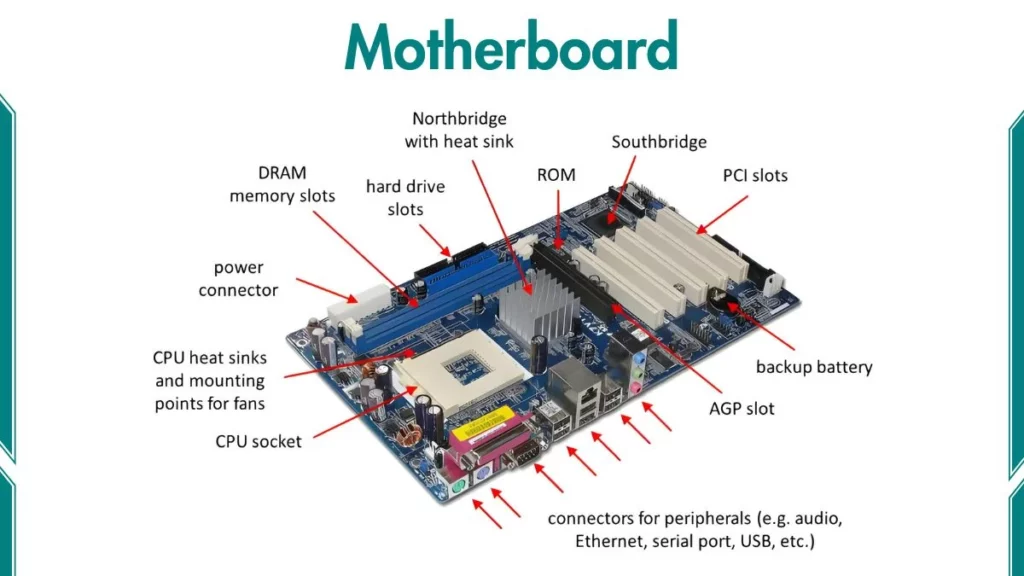
1. CPU Socket
The CPU socket holds the computer’s processor or Central Processing Unit. The socket provides both mechanical support and electrical connections. Modern sockets use a Zero Insertion Force (ZIF) design. This means the CPU slides into place easily without requiring pressure.
Socket Types:
- LGA (Land Grid Array): Intel uses this design. The socket contains pins that touch pads on the processor
- AM5: AMD’s current socket for Ryzen processors
- PGA (Pin Grid Array): Older AMD design where pins are on the processor
The socket type determines which processors work with the motherboard. An Intel processor cannot fit in an AMD socket. This compatibility requirement makes choosing the right socket critical when building or upgrading a PC.
2. Chipset
The chipset acts as the traffic controller for the motherboard. This collection of integrated circuits manages data flow between the processor, memory, and peripheral devices. The chipset determines many motherboard capabilities.
Chipset Responsibilities:
- Controls communication between CPU and other components
- Determines the number of USB ports available
- Sets limits on RAM speed and capacity
- Manages PCIe lanes for expansion cards
- Controls SATA ports for storage devices
- Enables or disables overclocking features
3. RAM Slots
RAM slots hold the system’s Random Access Memory modules. RAM provides temporary storage for active programs and data. The processor accesses RAM much faster than storage drives. More RAM allows running more programs simultaneously.
RAM Slot Characteristics:
- Number of Slots: Consumer motherboards typically have 2 to 4 RAM slots
- Memory Type: Modern boards support DDR4 or DDR5 memory
- Maximum Capacity: Depends on the chipset and motherboard design
- Channel Configuration: Dual-channel or quad-channel operation
4. SATA Ports
SATA (Serial Advanced Technology Attachment) ports connect traditional storage devices. These ports support:
- Hard Disk Drives (HDD): Mechanical drives with large capacities
- SATA SSDs: Solid State Drives using SATA connection
- Optical Drives: CD, DVD, and Blu-ray drives
SATA III, the current standard, transfers data at 6 gigabits per second (Gbps). This equals approximately 600 megabytes per second (MB/s) in real-world use. SATA connections require two cables: one for data (connects to the motherboard) and one for power (connects to power supply).
5. M.2 Slots
M.2 slots provide high-speed storage connectivity in a compact design. These slots connect directly to the motherboard without requiring cables. M.2 slots support two protocols:
- NVMe (Non-Volatile Memory Express): A modern protocol designed for SSDs. NVMe drives use PCIe lanes for much faster speeds than SATA
- SATA: Some M.2 slots also support SATA-based M.2 drives for backward compatibility
M.2 drives eliminate cable clutter. The compact size works well in small builds. Direct motherboard connection provides optimal performance.
6. PCIe Slots
PCIe (PCI Express) slots allow adding extra hardware to your computer. These expansion slots connect to the chipset and provide high-speed data paths. PCIe slots come in different physical sizes and electrical configurations.
PCIe Slot Types:
- PCIe x16: The longest slot, primarily for graphics cards. Provides 16 lanes of bandwidth
- PCIe x8: Medium slot offering 8 lanes. Used for high-performance capture cards or additional storage controllers
- PCIe x4: Smaller slot with 4 lanes. Common for M.2 adapters and network cards
- PCIe x1: The smallest slot with 1 lane. Used for sound cards, Wi-Fi adapters, and USB expansion cards
7. ATX Power Connector (24-pin)
This connector supplies electricity to most motherboard components. The 24-pin connector (sometimes appearing as 20+4 pin) delivers three voltage levels:
- 3.3 volts DC
- 5 volts DC
- 12 volts DC
The power supply cable plugs firmly into the motherboard socket. All modern ATX motherboards use this standard. The 20+4 design allows compatibility with older 20-pin motherboards.
8. EPS Power Connector (4-pin or 8-pin)
The EPS connector provides dedicated power to the processor. CPUs require stable, high-amperage 12-volt power for operation. This connector usually appears near the CPU socket in the upper left corner of the motherboard.
Configurations:
- 4-pin EPS: Basic CPU power for entry-level processors
- 8-pin EPS: Standard for mainstream and gaming CPUs
- Dual 8-pin EPS: High-end motherboards for extreme overclocking
The connector often uses a 4+4 design. This split allows using the cable with either 4-pin or 8-pin motherboard sockets.
9. USB Ports
USB (Universal Serial Bus) ports connect most peripherals. Several USB standards exist, each with different speeds:
- USB4 / Thunderbolt 4: 40 Gbps (5,000 MB/s). Professional devices and high-speed displays
- USB 2.0: 480 Mbps (60 MB/s). Suitable for keyboards, mice, and basic peripherals
- USB 3.0 / 3.1 Gen 1: 5 Gbps (625 MB/s). Good for external hard drives
- USB 3.1 Gen 2: 10 Gbps (1,250 MB/s). Fast external SSDs benefit from this speed
- USB 3.2: 20 Gbps (2,500 MB/s). Latest high-speed standard
10. Display Output Ports
Motherboards with integrated graphics include display connectors. These ports only work when using the CPU’s built-in graphics. When installing a dedicated graphics card, connect monitors to the graphics card instead.
Display Port Types:
- HDMI: Carries both digital video and audio. HDMI 2.1 supports 4K at 120Hz and 8K at 60Hz
- DisplayPort: Preferred for high-refresh monitors. DisplayPort 1.4 supports 4K at 144Hz
- DVI: Older digital video standard. Modern motherboards rarely include DVI
- VGA: Obsolete analog connection. No longer found on current motherboards
11. Audio Ports
Audio jacks use 3.5mm connections. Color coding helps identify each port:
- Green: Front speakers or headphones (main audio output)
- Pink: Microphone input
- Blue: Line input (auxiliary audio devices)
- Orange: Subwoofer or center speaker
- Black: Rear speakers
- Gray: Side speakers
Most motherboards support 5.1 or 7.1 surround sound systems. The audio codec chip determines sound quality and features.
12. CMOS Battery
A small coin cell battery on the motherboard maintains BIOS settings and the system clock. This CR2032 battery (3 volts) provides power even when the computer is unplugged.
Purpose: The CMOS battery preserves:
- BIOS configuration settings
- Real-time clock information
- Hardware configuration data
Battery Lifespan: CMOS batteries typically last 3-5 years. When the battery fails, symptoms include:
- System clock resetting to a default date
- BIOS settings reverting to defaults on each boot
- Error messages about CMOS checksum failures
Latest Technologies and Future Trends in Motherboard Components (2026)
Modern motherboards in 2026 include advanced technologies:
- PCIe 5.0: The latest expansion slot standard doubles PCIe 4.0 bandwidth. Graphics cards and SSDs benefit from this speed increase. PCIe 6.0 is under development but not yet in consumer products.
- DDR5 Memory: Now standard on new platforms, DDR5 provides higher bandwidth and efficiency. Capacity reaches 128GB per module for extreme workstations.
- USB4 and Thunderbolt 4/5: These 40 Gbps (or 80 Gbps for Thunderbolt 5) connections support high-speed external devices, displays, and docking stations.
- Wi-Fi 7: The newest wireless standard offers theoretical speeds up to 46 Gbps. Real-world performance provides significantly faster and more reliable wireless networking.
- AI-Enhanced BIOS: Some manufacturers add AI features to BIOS. These systems automatically optimize cooling curves and overclocking settings.
- Advanced Power Delivery: VRM designs continue improving with higher phase counts and better components. Modern boards handle 200+ watt processors efficiently.
Also Read: The Basics of a Motherboard to understand what a motherboard does.